Approach a controlled spaceport, remain outside the hangar, and press F11 to open mobiGlas. Open Commlink, choose the Friends tab, and select the local Landing Services or traffic-control contact. Wait for confirmation and an assigned landing marker before entering. If the contact or marker does not appear, stop your approach and use the fixes below.
Browse more Star Citizen guides
1. Check whether the destination requires clearance
This method applies to controlled spaceports and stations that assign hangars, pads, or docking areas through Landing Services. Small surface outposts and open pads may not offer a traffic-control contact, so the absence of Landing Services is not always a fault.
Look for enclosed hangars, restricted flight-zone guidance, or a facility marker indicating a major port or station. If the destination uses open, unassigned pads and no local contact appears when you are nearby, land only where the location permits and avoid occupied pads.
Checkpoint: Continue when you are approaching a controlled facility and can hold outside its landing area. Stop if you cannot identify the port or safely slow the ship.
2. Approach the spaceport and establish a safe hold
Fly toward the destination until the local facility and its landing services are within communication range. Reduce speed before opening mobiGlas so the ship does not drift into a structure, restricted zone, or another vessel.
- Point the ship away from nearby walls, towers, and hangar doors.
- Lower your closing speed and maintain a stable position outside the landing area.
- Keep the destination selected or visible so you can recognize the assigned marker after the call.
Landing Services may not appear while you are still too far away. Move closer in small increments rather than flying directly toward a closed hangar.
Checkpoint: The ship should be stable, the facility should be nearby, and you should have enough clearance to wait without blocking an entrance.
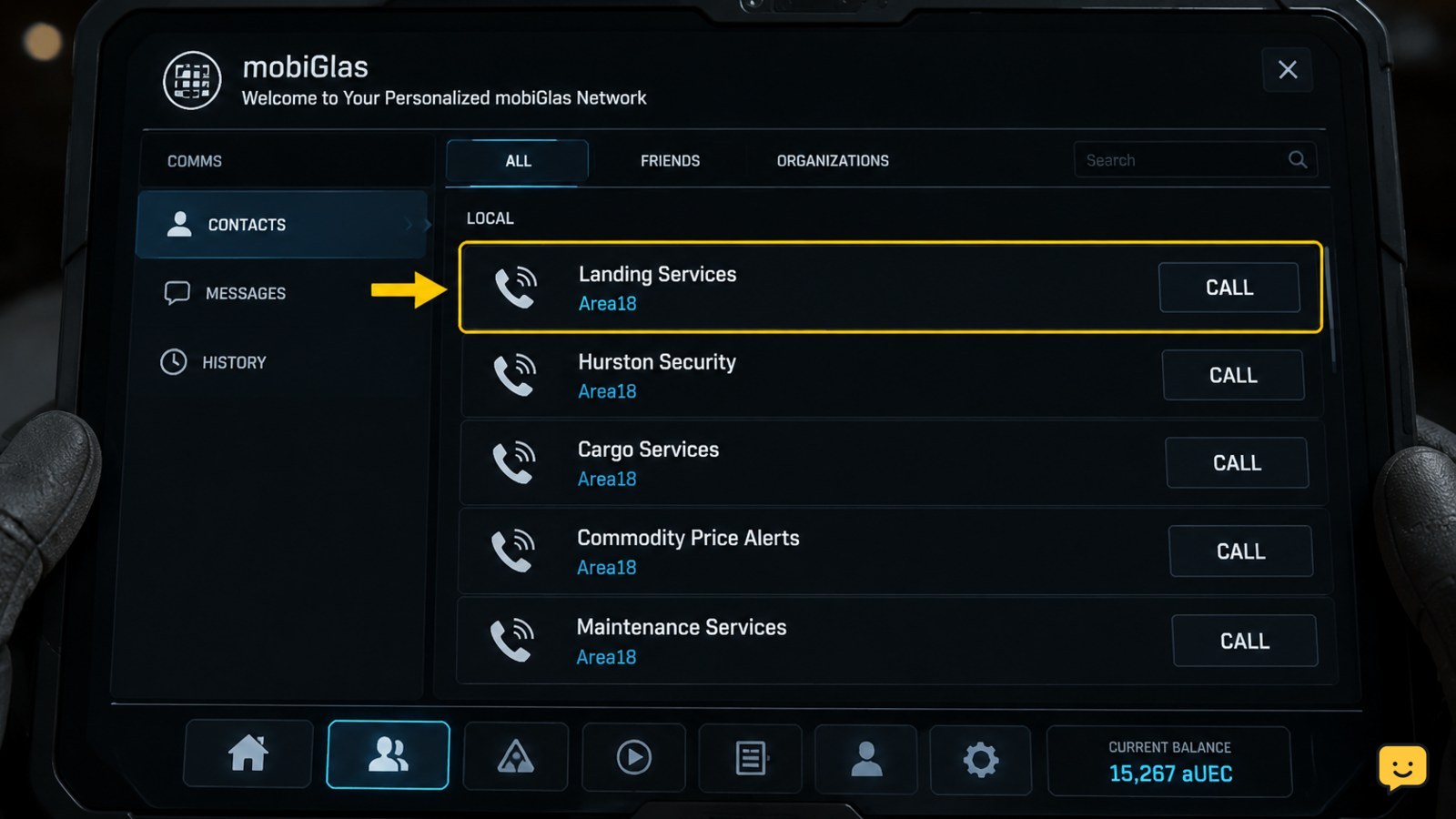
3. Contact Landing Services through mobiGlas
Press F11 on the default keyboard layout to open the mobiGlas Commlink page. If F11 has been rebound, use the control currently assigned to Commlink.
- Open Commlink.
- Select the contacts list, commonly shown under the Friends tab.
- Find the local Landing Services, spaceport, station, or traffic-control entry.
- Select the call button beside that contact.
Make one request and wait for the response. Repeated calls do not solve a range or interface problem and can make it harder to tell whether the first request succeeded.
Success looks like: traffic control responds and the HUD displays an assigned hangar, pad, or docking marker. Do not descend into the facility if you hear no response and receive no assignment.
4. Follow the assigned landing marker
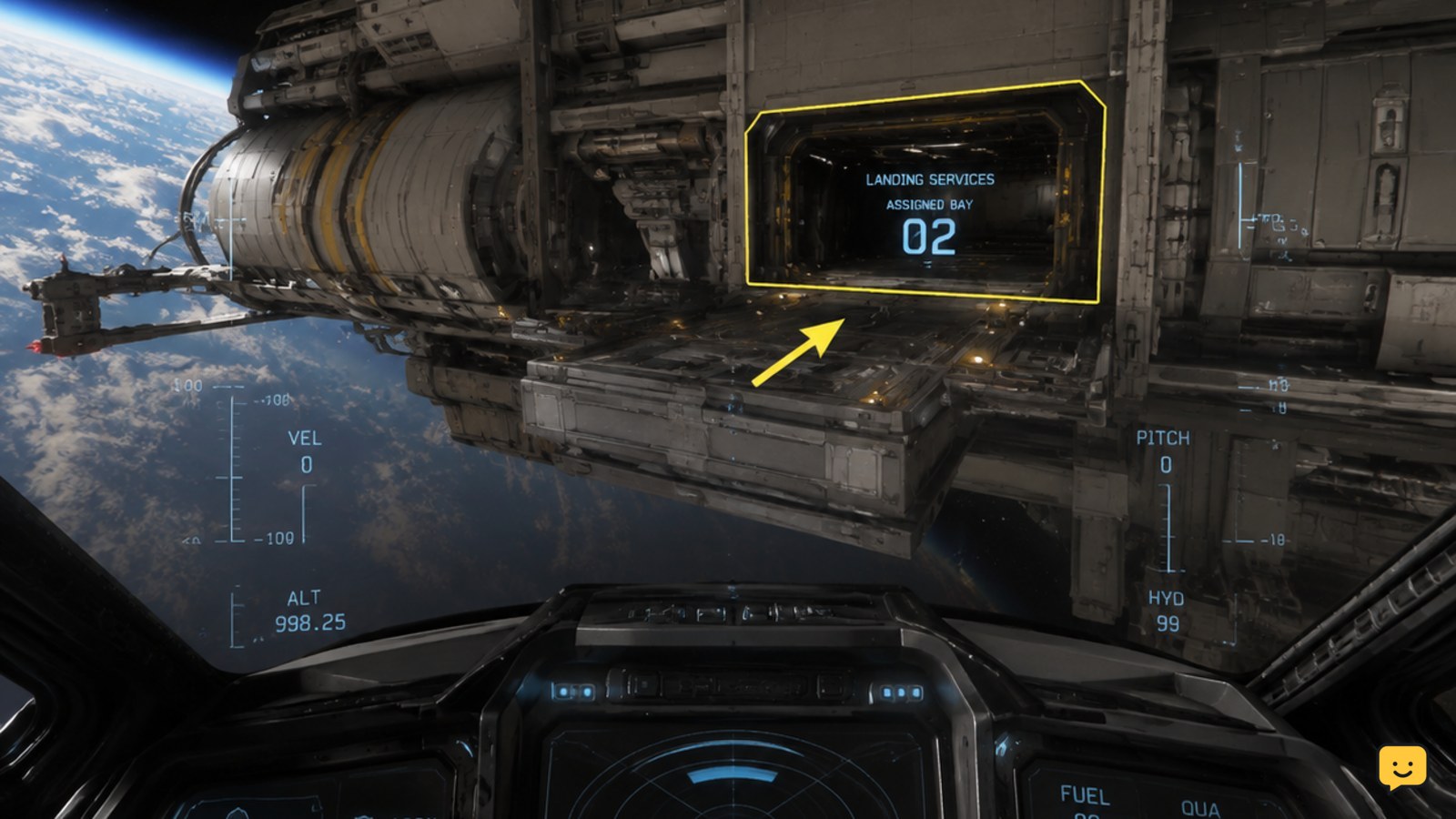
Close mobiGlas and locate the newly assigned marker on the flight HUD. The assignment, not the nearest open door, determines where you should land.
- Turn toward the assigned marker without crossing other hangar approaches.
- Confirm that the marked door or pad corresponds to your clearance.
- Wait outside if an enclosed hangar has not opened fully.
- Deploy landing gear using your current flight binding.
- Enter slowly and align the ship within the marked landing area.
Large ships need more room to center and descend. If the entry angle is poor, back away and establish another approach rather than forcing the ship through the door.
Stop condition: Do not enter when the marker points elsewhere, the door is closing, or another ship is occupying the approach.
5. Verify that the landing was accepted
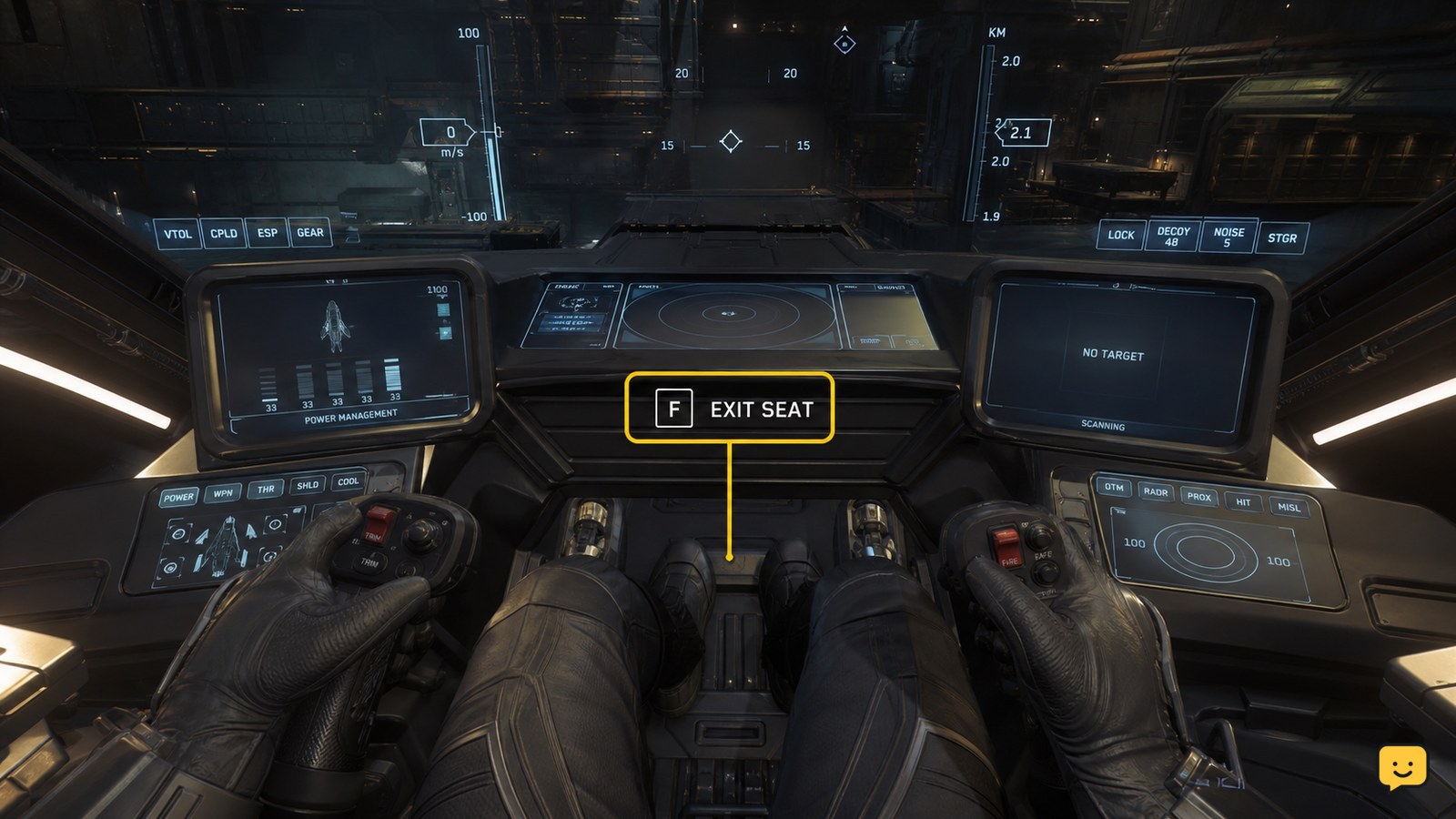
Lower the ship gently until it is supported by the pad or hangar floor. Bring the ship to a complete stop before leaving the pilot seat.
Verify the result using observable signs:
- The ship is fully inside the assigned area rather than touching the doorway or pad edge.
- The landing marker has led you to the same bay assigned by traffic control.
- No restricted-area or obstruction warning appears.
- The ship remains stable after thrust is reduced.
If the ship is down but still angled, sliding, or partly outside the marked area, lift slightly and reposition it. Do not power down or exit until the landing is stable and the route out of the ship is safe.
Fix Landing Services missing from Commlink
A missing contact usually means the facility is out of range, the wrong destination is nearby, or the Commlink list has not updated. It can also indicate that the location does not require clearance.
- Close mobiGlas and confirm that you are approaching the intended spaceport or station.
- Move closer while remaining outside hangars and restricted structures.
- Reopen Commlink and check the contacts list again.
- Confirm that the ship is powered and that the pilot still has flight control.
- If the location uses open pads and never exposes Landing Services, check whether clearance applies there before continuing.
If a major controlled port remains absent at close range, move to a safe holding position and reopen mobiGlas once. Persistent missing contacts can be a session or server-side problem. Stop the landing attempt rather than entering a controlled hangar without authorization.
Fix clearance received but no usable hangar appears
If traffic control responds but the marker is missing, first close mobiGlas and scan the HUD around the facility. The assigned entrance may be above, below, or on another side of the structure.
When a marker is visible but the hangar stays closed, hold outside without blocking the door. Do not assume that a nearby open hangar is yours. If the assignment disappears or never becomes usable, move away from the entrance and request clearance again only after the previous state has cleared.
If another ship blocks the assigned bay, maintain separation and wait. Abort the approach when collision avoidance would require entering another restricted bay or scraping the station.
Choose an optional request-landing keybind
Star Citizen control profiles may expose a dedicated request-landing command in Options under Advanced Controls Customization. Control names and categories can move between LIVE updates, so treat the Commlink method as the dependable fallback.
- Open Options and select Advanced Controls Customization.
- Choose the keyboard, joystick, or controller profile you actually use.
- Find the request-landing control and assign an unused input if it is present.
- Apply the change and test it at a controlled facility while holding at a safe distance.
A successful test must produce the same traffic-control response and assigned marker as the Commlink call. Remove or change the binding if it conflicts with landing gear, coupled-mode, targeting, or another flight control.
Frequently asked questions
Does every Star Citizen landing pad require clearance?
No. Controlled spaceports and stations generally use Landing Services to assign a hangar, pad, or docking area, while some small outposts have open pads without traffic control. If no contact appears, identify the location type before assuming the interface is broken.
Is there a default hotkey for requesting landing clearance?
Do not assume that a dedicated request-landing key is assigned. F11 opens the documented Commlink route on the default keyboard layout. Check Advanced Controls Customization for a request-landing command, bind it if available, and verify that it produces an ATC response and landing marker.
Can I land at a controlled spaceport without calling Landing Services?
You should not enter a controlled hangar without an assignment. The correct call identifies your landing area and allows the facility to present the appropriate route or door. If clearance fails, remain outside and troubleshoot the contact instead of choosing an unassigned bay.
Why did the hangar marker disappear during my approach?
The assignment may have expired, failed to display, or been lost during a connection or interface problem. Stop outside the facility, reopen Commlink, and check whether Landing Services accepts another request. Do not continue toward the last remembered hangar without a current marker.
How do I request takeoff clearance from a hangar?
Use the same local Landing Services contact while seated in the powered ship and ready to depart. Wait for the hangar route or door to become usable before moving. If no response arrives, remain stationary and reopen Commlink rather than forcing the ship through a closed door.