Open the fake profile from the platform’s official app or website, choose Report, select the option for an account pretending to be someone else, identify yourself as the person being impersonated, and submit the report. Save the profile URL and screenshots first. Then secure your real account and check that the impostor is restricted or removed.
Confirm the account is impersonating you
Compare the fake profile with your real account. Check for copied photos, a similar username, your name or biography, and messages that claim to come from you. An account that merely uses a similar name is not always impersonation; the report should explain which details make people likely to mistake it for your account.
Open the fake profile without replying to it. If the profile is private or has already disappeared, use the saved URL and screenshots when the platform’s reporting form allows attachments or additional details.
Save evidence before reporting the profile
Record the profile URL and username before blocking or reporting it. Capture the profile page and any post or message that uses your identity. Include dates, recipient names, payment requests, links, or statements that could mislead contacts.
Save evidence privately rather than reposting the fake content. Reposting can spread the impersonator’s profile or links. If a screenshot includes unrelated private information, keep the original for the platform or authorities and avoid sharing it publicly.
Report the fake account as impersonation
- Open the fake profile in the official social media app or website.
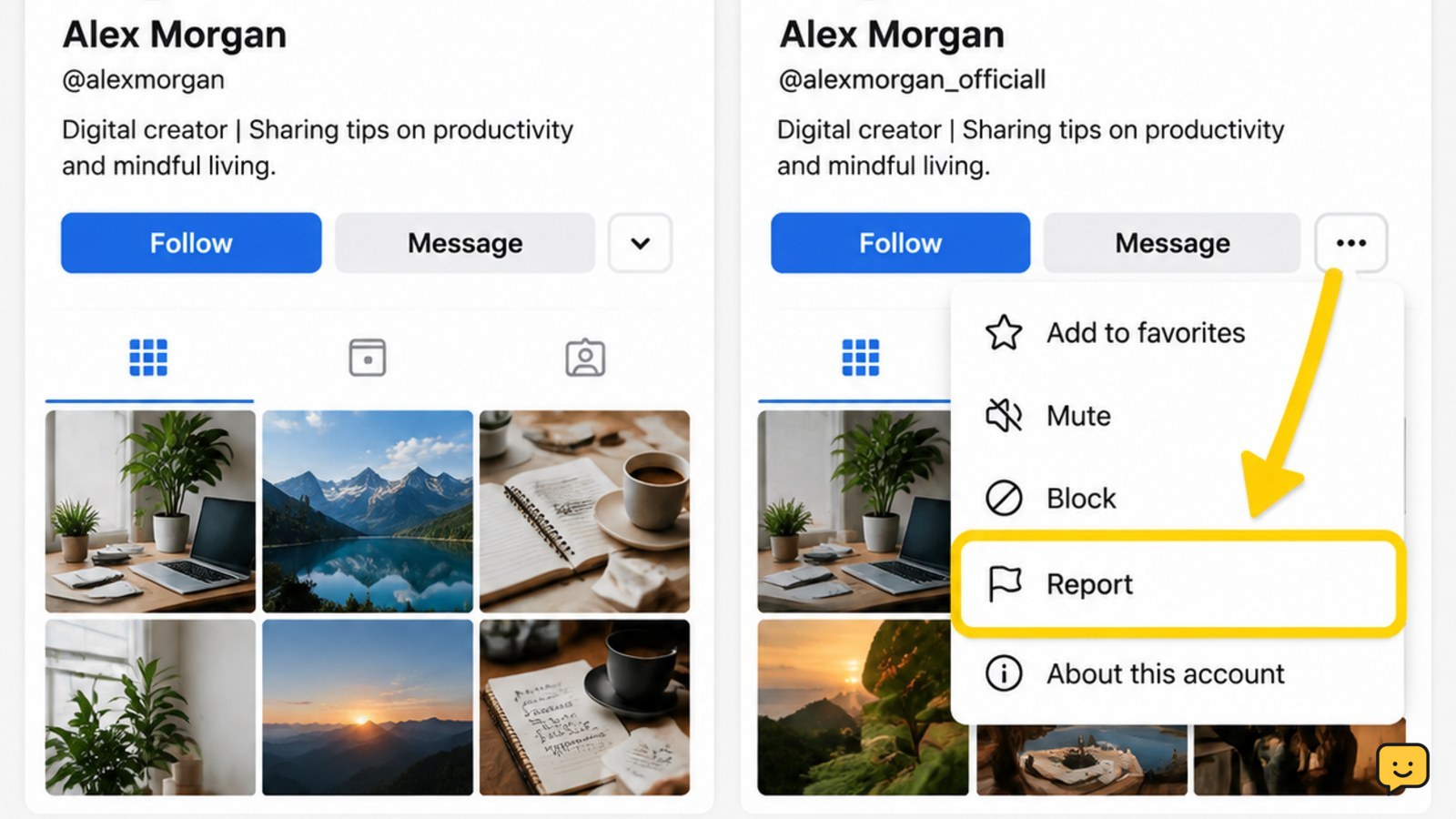
- Open the profile menu, usually shown by a three-dot or similar options control.
- Choose Report or the equivalent reporting command.
- Select the reason indicating that the account is pretending to be someone else.
- Choose the option identifying Me or yourself as the person being impersonated.
- Submit the report and follow any request for additional information.
Labels and menu order vary by platform and may change between mobile and desktop. Choose the closest impersonation category rather than a general spam option when it is available. The platform may ask for proof of identity; provide it only through the official reporting flow.
Warn contacts without amplifying the impostor
Use your real account to post a short warning or contact people who may have received messages. State that the other account is not yours, give the correct username or profile link, and tell contacts not to send money, passwords, sign-in codes, or personal information.
Do not quote or repost suspicious links from the fake profile. Ask contacts to report the account independently if the platform provides the same impersonation option. Independent reports can document the impact, but they do not replace your own report.
Secure your real account if the fake account targeted you
Impersonation does not by itself prove that your real account was hacked. Still, review your real account for unfamiliar sessions, changed contact details, unexpected posts, or messages you did not send. If you find any of these signs, change your password from the official account settings, end unfamiliar sessions, and enable two-factor authentication.
If you entered your password on a link sent by the impostor, change that password immediately and change it anywhere else you reused it. Review recent account changes after the password change. Do not use a password supplied by a message or a third-party “support” service.
Verify the report and choose the next action
Check the platform’s support or report-status area, if available, and revisit the profile later using the saved URL. Success may appear as a removed profile, an unavailable page, a changed username, or content that can no longer be viewed. A profile that remains visible does not necessarily mean the report failed; the platform may still be reviewing it.
If the report is rejected, submit a new report only when you can add a specific missing detail or use the platform’s impersonation form instead of a general report. Keep the case number or confirmation message. If the account is still contacting people, update your warning and preserve new evidence. Stop escalating through unofficial contacts that request payment or credentials.
Frequently asked questions
Can I report an impersonation account if I do not use that platform?
Yes, many platforms provide a report route for people who are being impersonated even when they do not have an active account there. Look for the platform’s official impersonation or identity-reporting form. Use the fake profile URL, explain how it represents you, and provide only the proof requested through that official form.
Should I block the fake account before reporting it?
Report it first if possible, after saving the profile URL and screenshots. Blocking can reduce contact but may make it harder to reopen the profile from your account. After submitting the report, block the account if it continues messaging you or your contacts.
What if the platform asks for identification?
Provide identification only through the platform’s official reporting page or in-app support flow. Check the web address carefully and do not send documents to an email address or direct message supplied by the impersonator. If the request seems unrelated to verifying the impersonation, stop and use the platform’s main help center.
Does a fake profile mean my real account was hacked?
No. Someone can copy your public name and photos without accessing your account. It becomes an account-compromise concern if you see unknown sessions, changed recovery details, posts you did not create, or messages sent from your real profile. In that case, secure the real account separately and preserve evidence.
Browse more Privacy & Online Safety guides for help with this topic.