
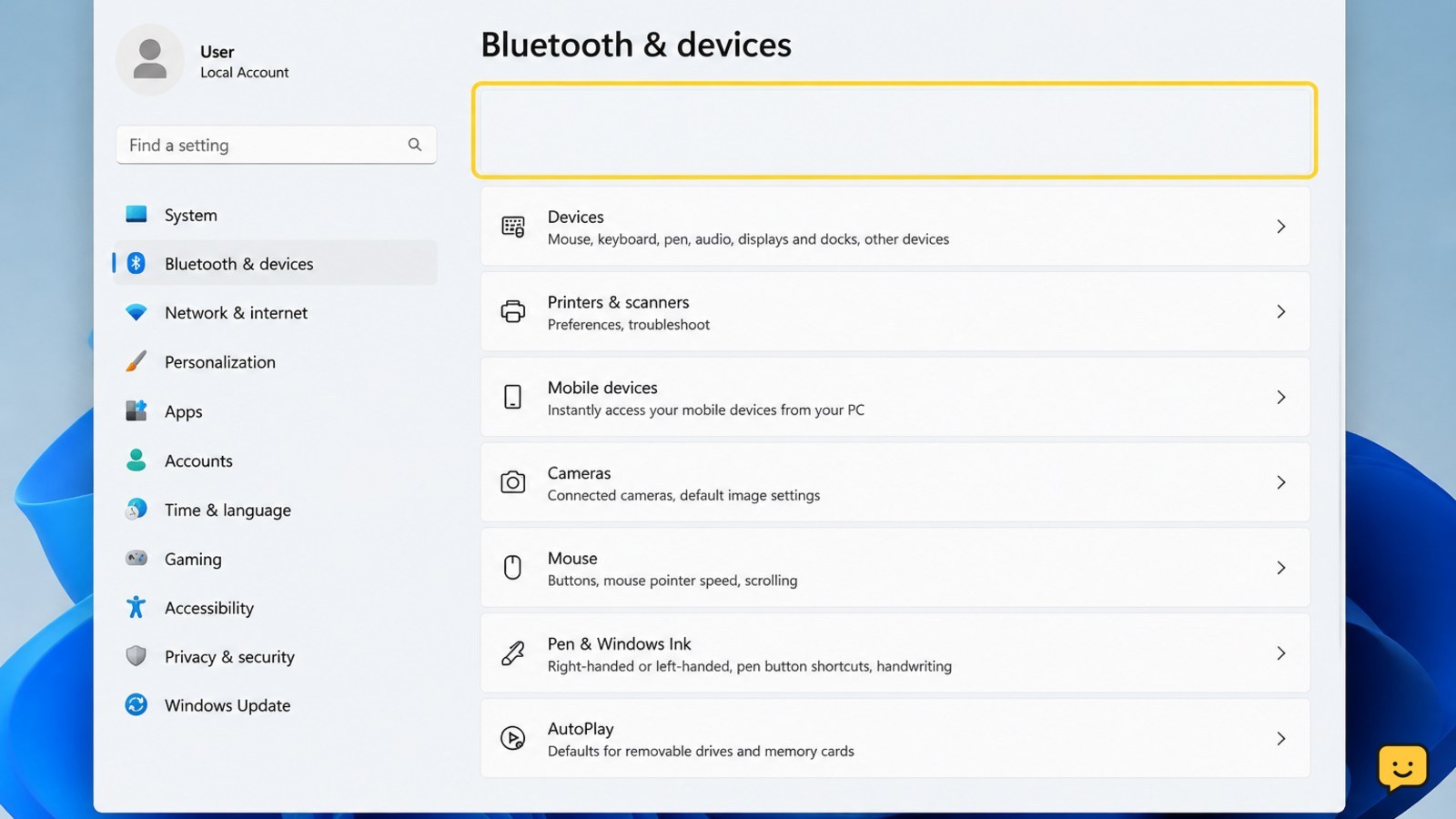
If Bluetooth disappeared from Windows 11 Settings, first turn off Airplane Mode and restart the PC. Then check Device Manager for a disabled or hidden Bluetooth adapter, install the correct driver from your PC maker, and restart the Bluetooth Support Service. If no adapter appears after hardware detection and updates, the adapter may be disconnected, disabled in firmware, or faulty.
Check the quick settings that can hide Bluetooth
Start with the simplest causes. Press Windows key + A to open Quick Settings. If Airplane mode is on, select it to turn it off. On some computers, a keyboard key or manufacturer’s wireless-control utility can also disable wireless hardware, so check for a wireless or airplane-mode key and press it once if appropriate.
- Restart the computer after turning Airplane mode off.
- Open Settings > Bluetooth & devices.
- Check whether the Bluetooth switch and Add device button have returned.
Verify: Bluetooth is restored if the switch appears and a nearby, charged device can be selected for pairing. If the Bluetooth page is still missing or there is no switch, continue to Device Manager.
Look for the Bluetooth adapter in Device Manager
Device Manager shows whether Windows can currently detect the computer’s Bluetooth hardware. Right-click Start, select Device Manager, and expand Bluetooth.
- If the adapter has a down-arrow icon, right-click it and choose Enable device.
- If it has a warning icon, open Properties and read the device status on the General tab.
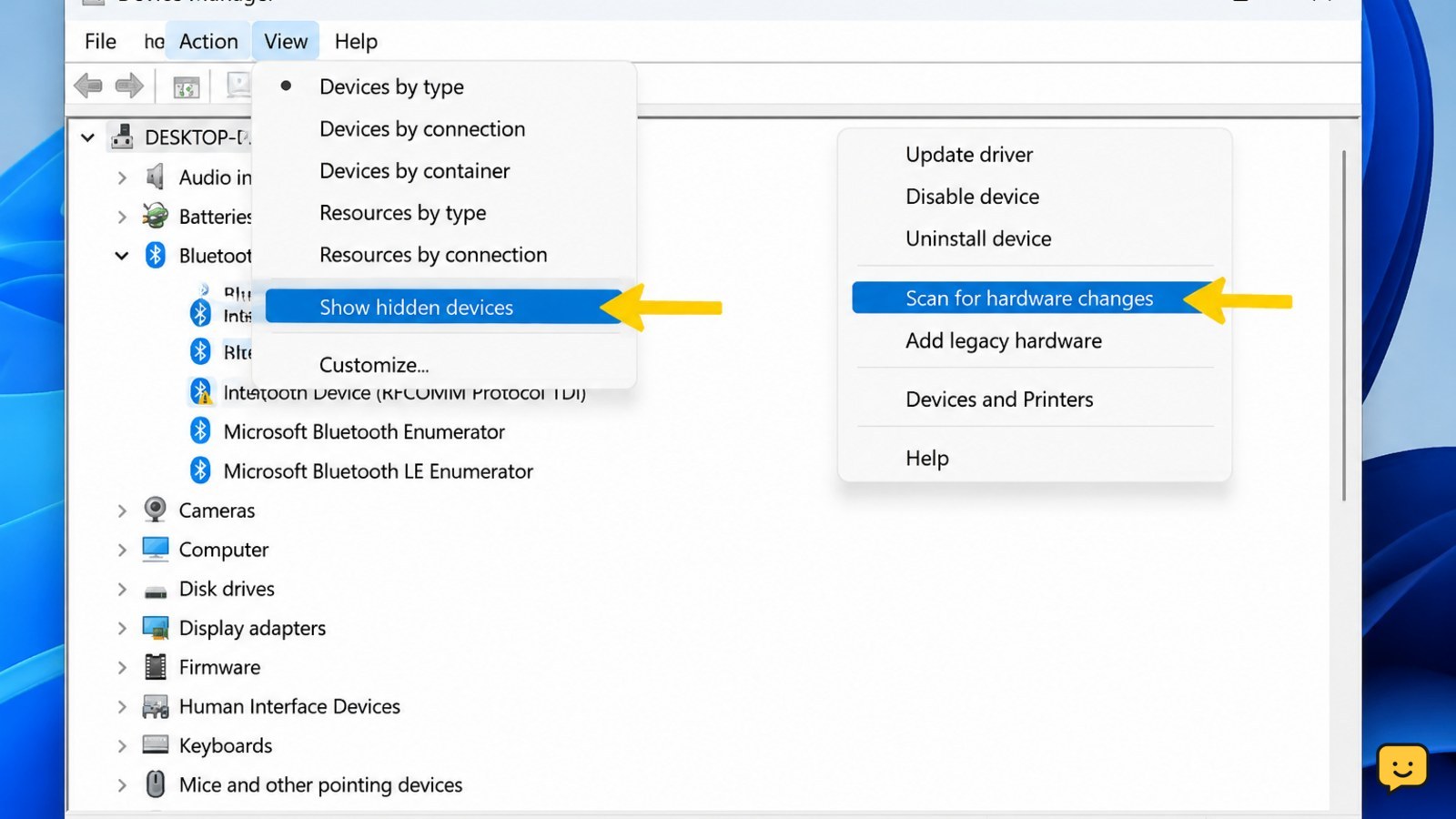
- If Bluetooth is not listed, select View > Show hidden devices.
- Select Action > Scan for hardware changes.
- Also check Network adapters and Other devices for an unidentified wireless or Bluetooth device.
Verify: restart Windows, then check Settings again. If the adapter appears but Bluetooth remains unavailable, continue with the driver steps. If it is absent from every relevant list, Windows is not detecting the hardware at this point.
Repair or reinstall the Bluetooth driver
A damaged, incompatible, or missing driver can remove Bluetooth controls from Settings. In Device Manager, right-click the Bluetooth adapter and select Update driver, then choose Search automatically for drivers.
If Windows does not find a suitable driver, visit the official support page for the exact computer model. Download the Bluetooth or wireless driver listed for Windows 11, install it, and restart the PC. Avoid generic driver-download sites and do not install a driver for a different model.
- Return to Device Manager after restarting.
- Open the adapter’s Properties and check the device status.
- If the adapter still has an error, right-click it and choose Uninstall device only when you have the correct replacement driver or Windows is expected to reinstall it.
- Restart Windows and check Device Manager and Settings again.
Verify: the adapter should be listed without a warning icon, and Settings > Bluetooth & devices should show the Bluetooth controls.
Restart the Bluetooth service
The Bluetooth service must be running for Windows to manage Bluetooth devices. Press Windows key + R, type services.msc, and press Enter. Find Bluetooth Support Service.
- Right-click the service and choose Restart if it is already running.
- If it is stopped, choose Start.
- Open Properties and set Startup type to Automatic if the option is available.
- Restart the computer and check Bluetooth settings.
Verify: the Bluetooth switch returns or the computer can discover a nearby device. If the service will not start, note the exact error and continue to Windows Update rather than changing unrelated services.
Install Windows updates and test hardware detection
Microsoft recommends checking for the latest Bluetooth drivers and Windows updates when Bluetooth disappears. Open Settings > Windows Update, select Check for updates, and install available updates. Restart when Windows requests it, then check Advanced options > Optional updates for a relevant driver update.
After the restart, repeat the Device Manager scan: right-click the computer name at the top of Device Manager and select Scan for hardware changes. Test with a known-compatible Bluetooth device that is charged, nearby, and in pairing mode.
Verify: success means Bluetooth is visible in Settings and the test device appears under Add device. If the adapter is still missing from Device Manager, the problem is likely below the Settings screen: the hardware may be disabled, disconnected, unsupported, or defective. Stop troubleshooting software and contact the computer manufacturer or a qualified repair professional.
Reconnect the Bluetooth device after the controls return
Once Bluetooth is visible again, remove an old, failed pairing before trying a fresh connection. Go to Settings > Bluetooth & devices, select the device’s More options button, choose Remove device, and confirm. Put the accessory into pairing mode, select Add device > Bluetooth, and choose its name.
Keep the accessory close to the PC during pairing and disconnect it from another nearby device if it automatically reconnects there. For headphones or speakers, select the paired device under Settings > System > Sound if Windows continues using another output.
Stop: if only one accessory fails while other Bluetooth devices pair normally, troubleshoot that accessory’s battery, pairing mode, or manufacturer instructions instead of repeating Windows driver changes.
Frequently asked questions
Why did Bluetooth disappear from Windows 11 Settings?
Bluetooth usually disappears because Windows cannot detect the adapter, the adapter is disabled, Airplane Mode is active, a driver is missing or damaged, or the Bluetooth service is not running. Check Device Manager first. If no adapter appears after showing hidden devices and scanning for hardware changes, the issue may involve firmware, a disconnected component, or hardware failure.
How do I get the Bluetooth toggle back in Windows 11?
Turn off Airplane Mode, restart Windows, and check Device Manager for a disabled or hidden Bluetooth adapter. Enable the adapter, install the correct Windows 11 driver from the computer manufacturer’s support page, and restart the Bluetooth Support Service. Check Settings again after each restart.
What if Bluetooth is missing from Device Manager?
First select View, Show hidden devices, then choose Action, Scan for hardware changes. Check Network adapters and Other devices for an unidentified wireless component. Install the official Bluetooth or wireless driver for the exact computer model. If the adapter remains absent, stop software troubleshooting and contact the manufacturer or a qualified repair professional.
Can Windows Update restore missing Bluetooth?
Windows Update can restore Bluetooth when the cause is a compatible missing driver or system update. Open Settings, select Windows Update, choose Check for updates, install available updates, and restart. Also review Optional updates for a relevant driver. If the hardware is not detected, updates alone may not solve the problem.
Browse more Computers & Internet guides for help with this topic.


