For The Isle Evrima stuttering, first close overlays and heavy background apps, then clear the DirectX shader cache and restart Windows. Use a stable FPS cap instead of chasing unlimited frames, lower foliage, shadows, and view distance, and verify Steam files. The first launch after clearing shaders may stutter briefly while the cache rebuilds. This guide applies to Evrima, not Legacy.
Confirm the problem is Evrima stutter
This checklist is for The Isle: Evrima on Windows PC. It does not claim to fix Legacy, whose branch, files, and performance profile can differ.
- Launch Evrima and join the same type of server where the problem normally appears.
- Watch for short freezes or uneven motion while turning, sprinting, or entering a new area. A low but steady FPS reading is usually a performance limit; repeated pauses with otherwise acceptable FPS point more toward frame-time spikes.
- Test for several minutes in the same location after every major change. Do not compare a quiet area with a crowded one.
Verify: Keep the change only if camera movement feels more consistent and the hitch happens less often. If the issue affects only one server, test another server before changing more settings.
Close background apps and overlays
Overlays, browsers, recording tools, hardware monitors, and downloads can compete for CPU time, memory, storage access, or GPU resources. Test Evrima with nonessential programs closed.
- Exit browsers with video or many open tabs, launchers, recording software, RGB utilities, and other games.
- Pause active downloads and file transfers, including Steam downloads.
- Disable optional overlays one at a time, such as the Steam overlay, GPU overlay, chat overlay, or capture overlay. Keep your security software enabled.
- Restart Evrima after making the change instead of assuming the process released every resource.
Failure path: If closing overlays changes nothing, re-enable them individually and continue to the shader-cache test. If one overlay clearly causes the hitch, leave that overlay disabled for Evrima or update it before testing again.
Clear the shader cache safely
Shader compilation can cause temporary hitches when the game or driver encounters effects it has not cached yet. A damaged or stale cache can also be worth testing, but clearing it is not a guaranteed permanent fix.
- Exit The Isle and Steam.
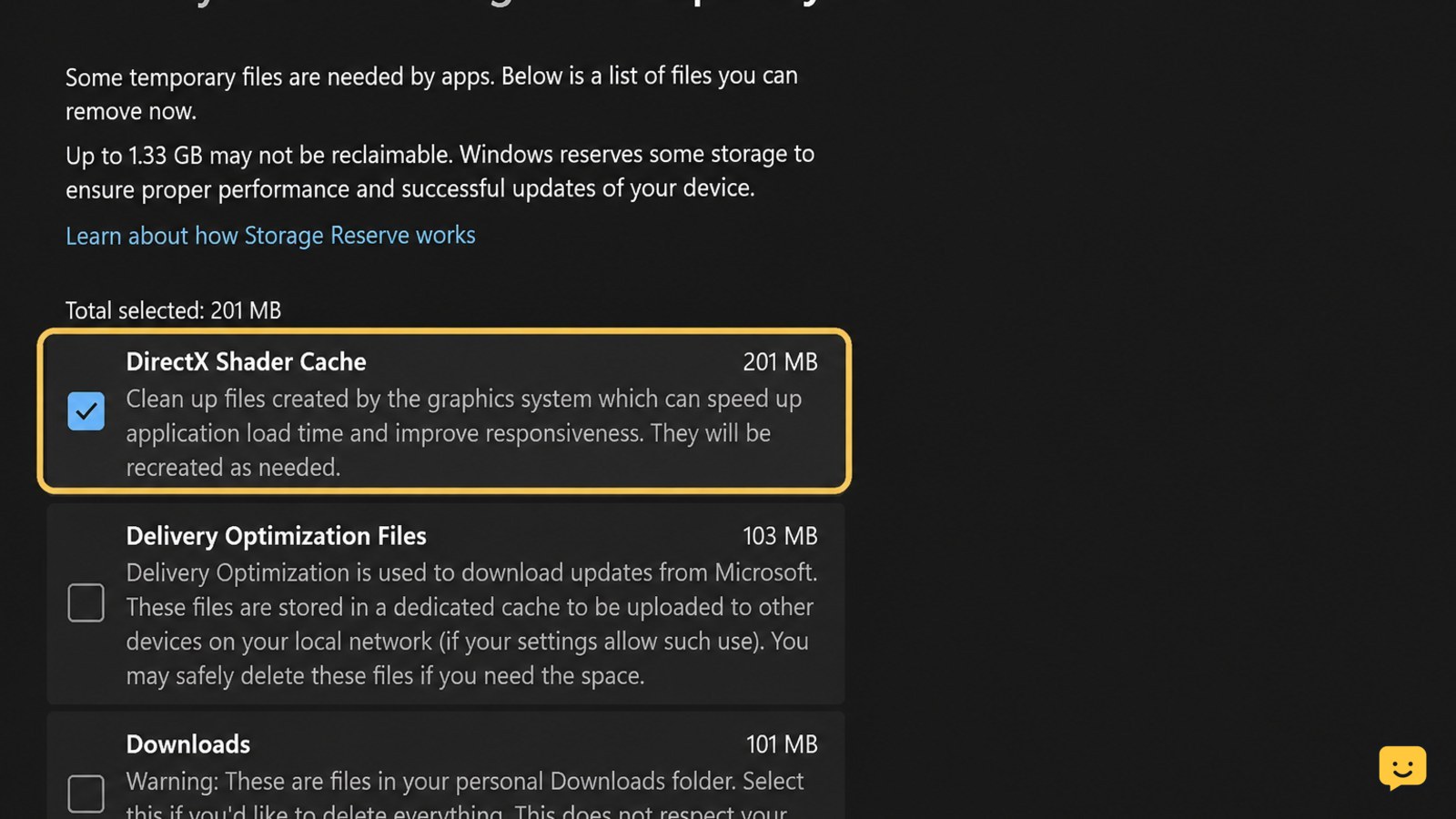
- Open Windows Settings and use the system storage cleanup options to remove DirectX Shader Cache. The exact menu label can vary by Windows version.
- If your graphics-driver software provides a shader-cache reset, use its documented reset option rather than deleting unrelated folders manually.
- Restart Windows, open Steam, and launch Evrima.
- Run the same route or test area for several minutes. Expect the first run to be less consistent while shaders are rebuilt.
A Steam community troubleshooting report also directs players to begin from %localappdata%, while another community report mentions changing AppData values. Those reports do not establish a safe, current file path or universal setting, so do not copy an unverified configuration edit.
Verify: Compare the second and third runs, not only the first run after cleanup. Stop this branch if stutter improves temporarily but returns after every launch; continue with frame pacing and graphics tests instead.
Stabilize frame pacing with a sensible cap
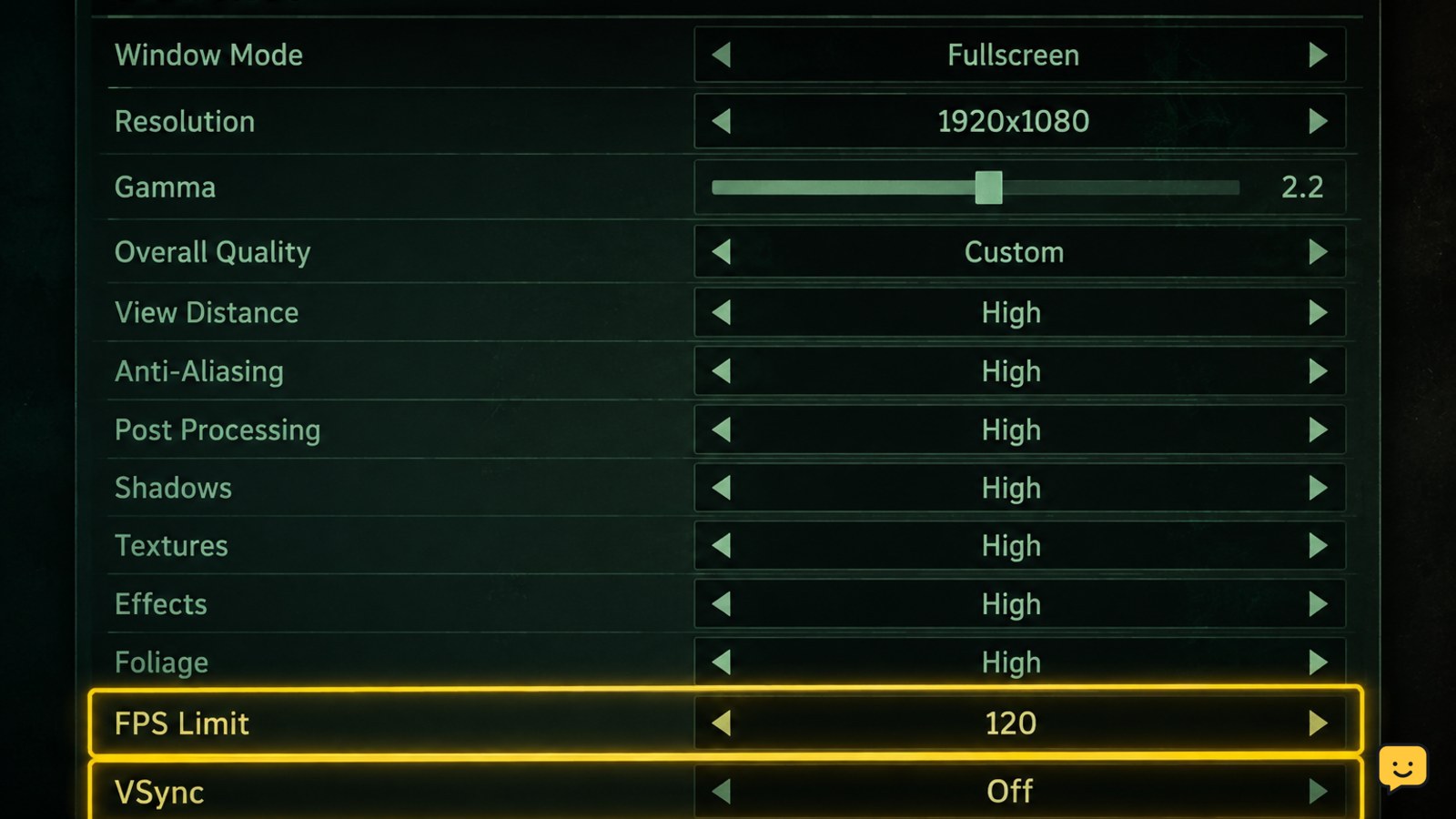
Unlimited FPS can produce uneven frame times when the PC repeatedly reaches and loses its performance limit. A stable cap is often easier to evaluate than a fluctuating maximum.
- Choose an FPS cap your PC can hold in demanding areas, not the peak number seen while standing still.
- Apply one limiter first: the game’s own limiter if available, or the graphics driver’s per-game limiter. Avoid stacking several limiters during diagnosis.
- Test VSync on and off separately. Keep the option that produces smoother motion without unacceptable input delay or tearing.
- Use an overlay only for a short measurement test, then disable it if the overlay itself is suspected.
Verify: The goal is fewer frame-time spikes, not the highest displayed FPS. If a cap makes movement smoother, keep it. If it causes regular pauses or feels worse, remove it and test a lower cap or the other VSync state.
Reduce the Evrima settings most likely to hitch
Change one group of settings at a time so you can identify the cause. Start with options that increase scene complexity rather than lowering every setting.
- Lower foliage, shadows, and view distance by one step.
- Reduce effects or post-processing if hitches occur near dense vegetation, weather, lighting changes, or combat.
- Keep textures at a level your GPU memory can handle. Lower textures only if VRAM use is near its limit or texture streaming causes pauses.
- Reduce resolution or use an available upscaling option only if the GPU is consistently at full load.
- Restart the game when a setting change requests it, then repeat the same route.
Do not use brightness or gamma changes as a stutter fix; those affect visibility rather than frame pacing. For visibility adjustments, see the Evrima brightness and gamma settings guide.
Failure path: If low settings do not change the hitch, the limit may be CPU, storage, shader compilation, a driver issue, or the server rather than graphics quality. Restore settings that did not help.
Update drivers and verify Steam files
Use these checks after the local settings tests. They can repair damaged files or resolve a driver regression, but they cannot correct every Evrima-side performance issue.
- Install the current stable graphics driver recommended for your GPU. If the stutter began immediately after a driver update, check the manufacturer’s release notes and consider returning to the last known-good driver.
- In Steam, open The Isle’s properties, find the installed-files section, and run Verify integrity of game files.
- Wait for the process to finish, then restart Steam and Windows before retesting.
- Test a second Evrima server. Record whether the hitch follows your character everywhere or appears only in a specific server, area, or population level.
Verify: A successful file check only confirms Steam’s local file check completed; it does not prove that all stutter is fixed. If the problem remains across servers and clean local tests, report the reproducible route, branch, graphics driver, hardware, and approximate frame-time behavior to the game’s current support or bug-report channel.
Frequently asked questions
Does clearing the shader cache permanently fix The Isle Evrima stuttering?
No. Clearing the shader cache is a diagnostic step, not a guaranteed permanent fix. The first launch afterward may stutter while shaders are rebuilt. Compare several runs on the same route. If only the first run is rough, cache rebuilding was likely involved; if every run stutters, test frame pacing, graphics load, drivers, and server differences.
Should I edit The Isle Evrima AppData files?
Usually, no—not without a current, clearly documented file path and backup. Community discussions mention AppData changes, but an old value or path may no longer apply after an Evrima update. Use Steam verification and Windows shader-cache cleanup first. Stop if you cannot identify exactly what a setting does or restore the original value.
What graphics settings should I lower first in Evrima?
Lower foliage, shadows, and view distance first, then test effects or post-processing. These settings can reduce scene complexity in demanding areas. Change one group at a time and use the same route for comparison. Lower resolution or enable upscaling only when the GPU is the clear limit; CPU-bound stutter will not be solved by lowering every visual option.
Why does The Isle Evrima stutter only in some areas or servers?
Area and server differences can change the amount of vegetation, creatures, effects, and network activity being processed. Test another server and repeat the same movement route. If the hitch follows you across servers, focus on the PC, cache, driver, and frame cap. If it is isolated to one server or location, local settings may not be the only cause.