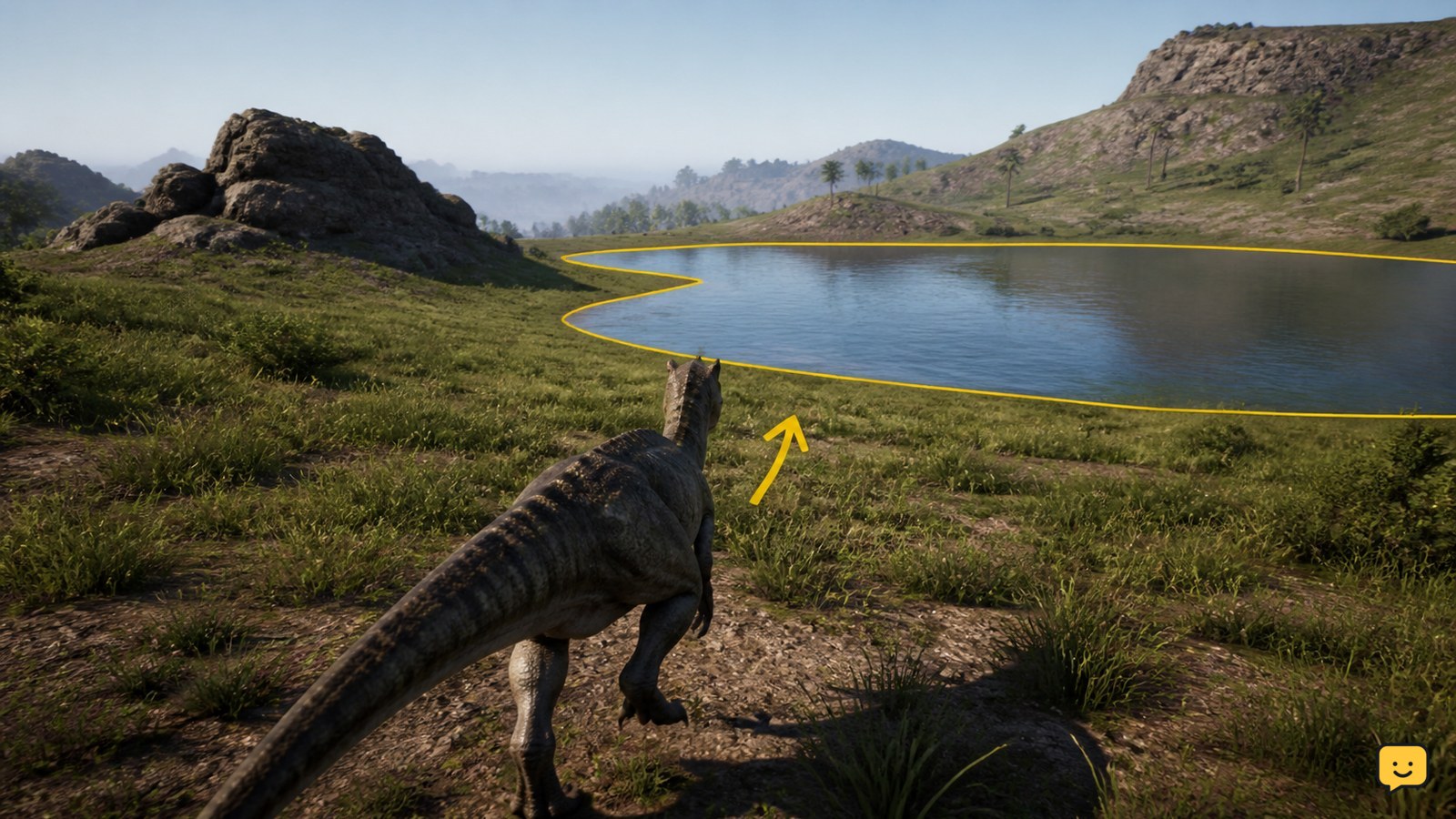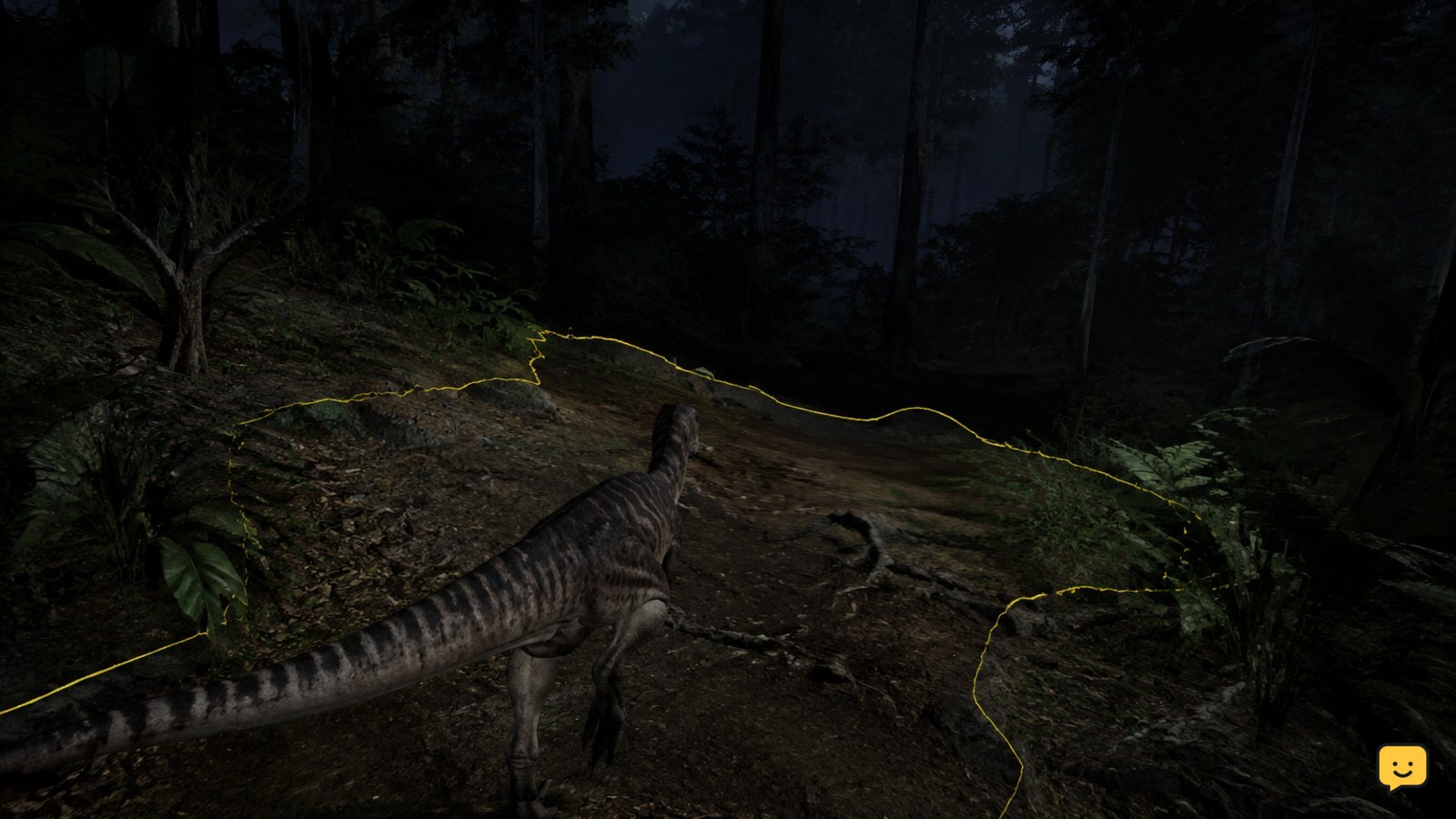
The Isle can look very dark because night, weather, dense foliage, HDR, a mismatched black level, or monitor settings reduce shadow detail at the same time. If it looks darker than intended even in daylight, reset display changes, compare HDR off and on, then raise only the in-game brightness needed to read nearby terrain. Avoid filters or extreme gamma that reveal more than normal gameplay lighting.
Why is The Isle so dark in Evrima?
Darkness is often intentional at night, during rain, in fog, or under dense canopy. It becomes a settings problem when nearby ground, foliage, menus, or daylight scenes also look crushed into black. HDR calibration, monitor black level, GPU output range, and display enhancement modes can all make Evrima look darker than it should.
Applicability: Evrima, not Legacy
This guide is for the current Evrima branch on PC. Do not assume that a brightness recommendation, graphics option, or community workaround from Legacy behaves the same way in Evrima.
Brightness and gamma are also affected by your monitor, Windows display settings, GPU control panel, HDR, room lighting, and the game’s current build. Treat the values below as a testing range, not a guaranteed competitive preset.
Use this balanced visibility baseline
Begin with the game’s default brightness and your monitor’s neutral picture profile. Then make small changes in this order:
- Raise in-game brightness one step at a time until dark ground texture and nearby foliage are distinguishable.
- Keep contrast near its neutral position. Excessive contrast can make shadows darker even when the overall picture appears brighter.
- Use a neutral or slightly warm color temperature. Very cool profiles can make fog and pale terrain look harsher without adding useful detail.
- Leave sharpening, black equalizer, and similar monitor controls at neutral initially. Test them separately rather than changing several controls together.
A practical target is a scene that remains dark at night but still lets you identify nearby terrain, slopes, and cover. If every shadow is equally visible, the setting is too aggressive for a fair gameplay image.
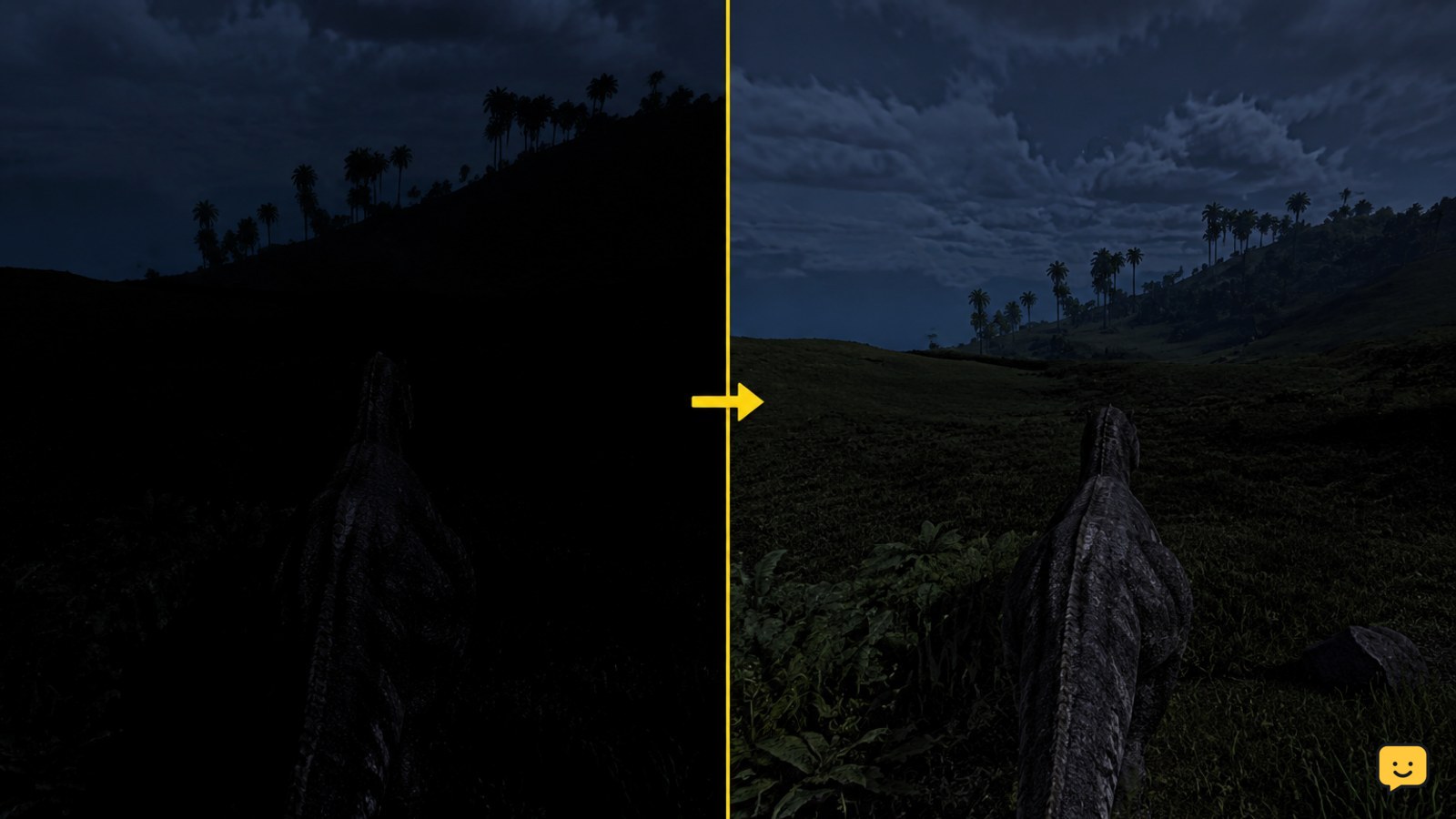
Tune the display without crushing detail
If Evrima still looks too dark, adjust one layer at a time. First check the game’s own display and graphics options. Next check the monitor’s brightness and black-level controls. Only then inspect the GPU driver’s display settings.
- Test in fullscreen and confirm the game is using the monitor you actually tuned.
- Compare SDR and HDR. HDR can improve highlights on a compatible setup, but an incorrect operating-system or monitor HDR configuration may make dark scenes worse.
- Check the GPU output range. A mismatch between limited and full range can make blacks look crushed or the entire image look faded.
- Apply the smallest useful correction, then return to the game and test again.
Community discussions often call these changes “gamma,” even when they are actually monitor brightness, contrast, black level, or a driver filter. Record each change so you can undo it after an update.
Verify visibility in four conditions
Do not judge the setup from one bright daytime scene. Check the same area during several conditions:
- Daylight: confirm that pale ground, sky, and distant foliage are not overexposed.
- Dusk or dawn: check whether nearby cover remains visible without turning the entire horizon grey.
- Rain or fog: make sure weather still reduces distance visibility naturally.
- Night: confirm that you can read immediate terrain and avoid obstacles, but cannot see distant shapes as if the scene were illuminated.
After each change, move your view between open ground and dense foliage. A useful setting preserves differences between surfaces instead of simply making all dark areas brighter.
Fix an Evrima screen that is still too dark
If the baseline does not help, use this failure path:
- Reset the game’s display and graphics settings, restart Evrima, and test before applying custom changes.
- Toggle HDR off for one comparison. If the image improves immediately, calibrate HDR outside the game before turning it back on.
- Disable GPU color filters, overlays, and monitor-specific enhancement modes. Test the unmodified picture.
- Update or restart the graphics driver if brightness changed after a driver update.
- Verify that the problem affects more than one server and more than one time of day.
If the image is normal in daylight but remains dark only at night, that may be intended lighting rather than a fault. Use normal gameplay visibility tools and safer positioning instead of trying to remove the night cycle’s limitation.
Evrima versus Legacy gamma expectations
Legacy community posts frequently discuss monitor gamma and third-party visual adjustments, but those reports are not a dependable Evrima settings reference. Lighting, rendering, and server rules can change between branches and updates.
For Evrima, prefer settings that improve comfort while preserving the difference between day and night. If a community server bans visual filters or display modifications, follow that server’s rules even when the change is made outside the game.
Frequently asked questions
Why is The Isle so dark even after I increase brightness?
Check HDR, monitor black level, GPU output range, and any contrast, black-equalizer, or color-filter setting before raising brightness further. If daylight scenes and menus also look too dark, the cause is usually outside the night cycle. If only night scenes are dark, that may be intended Evrima lighting.
Does The Isle Evrima have a universal gamma setting?
No. A universal value is not reliable because monitors, HDR, GPU output range, room lighting, and game updates change how the image appears. Use the default as your starting point and make small adjustments while checking daylight, weather, dusk, and night.
Why does The Isle Evrima look darker after enabling HDR?
HDR may be configured differently across Windows, your monitor, and the game. A poor HDR calibration or incorrect black level can crush shadow detail. Compare HDR off and on, restore neutral display settings, and stop using HDR if it makes the image less readable.
Should I raise monitor brightness or in-game brightness first?
Use the game’s own display controls first, then adjust the monitor in small steps. Keeping the monitor close to neutral makes it easier to identify whether Evrima, HDR, the GPU driver, or the display is causing the problem.
Can brightness settings make night scenes unfair?
Yes. Extreme gamma, black-equalizer settings, filters, or other display modifications can reveal silhouettes and terrain beyond the intended lighting. Use the lowest correction that improves comfort and follow the rules of the server you join.