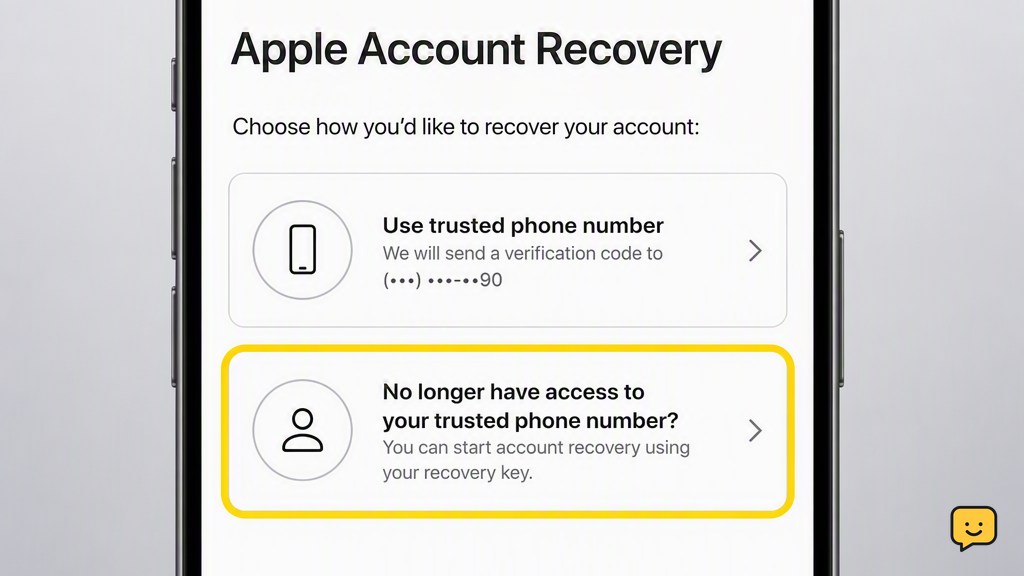
If you cannot receive codes at your trusted phone number, first try changing the password on a trusted Apple device that is already signed in. You can also request a code from a previously configured recovery contact. If neither option is available, start account recovery at iforgot.apple.com and wait for Apple’s identity-verification process to finish.
Choose the fastest recovery route
This guide applies when you own the Apple Account but cannot receive verification codes at its trusted phone number. Losing the number does not always mean you must enter account recovery.
- Use a trusted device first: Choose this if an iPhone, iPad, or Mac is already signed in to the account and you can unlock it.
- Use a recovery contact: Choose this if you appointed someone as an account recovery contact before losing access.
- Start account recovery: Use this only when you cannot reset the password with a trusted device or recovery contact.
A trusted device is more useful than simply possessing an Apple device. It must already be signed in to your account and protected by a passcode or login password.
Reset the password from a trusted Apple device
This is normally the quickest route because the signed-in device helps Apple verify that you control the account.
- On an iPhone or iPad, open Settings and tap your name.
- Open Sign-In & Security, then choose Change Password.
- Enter the device passcode when requested.
- Set a new Apple Account password and follow any remaining prompts.
On a Mac, open System Settings, select your name, open Sign-In & Security, and choose Change Password.
Verify the result: Confirm that the new password is accepted and that you can open the account’s Sign-In & Security settings. Once access is stable, replace the obsolete trusted phone number with one you control.
If the device asks for a code sent to the inaccessible number and offers no other route, continue to the recovery-contact or account-recovery steps.
Ask a recovery contact for a recovery code
A recovery contact can help only if you added that person before the lockout. The contact cannot access your account, messages, photos, backups, or password.
- Contact the person you previously designated as your recovery contact.
- Ask them to open Settings, tap their name, and select Sign-In & Security.
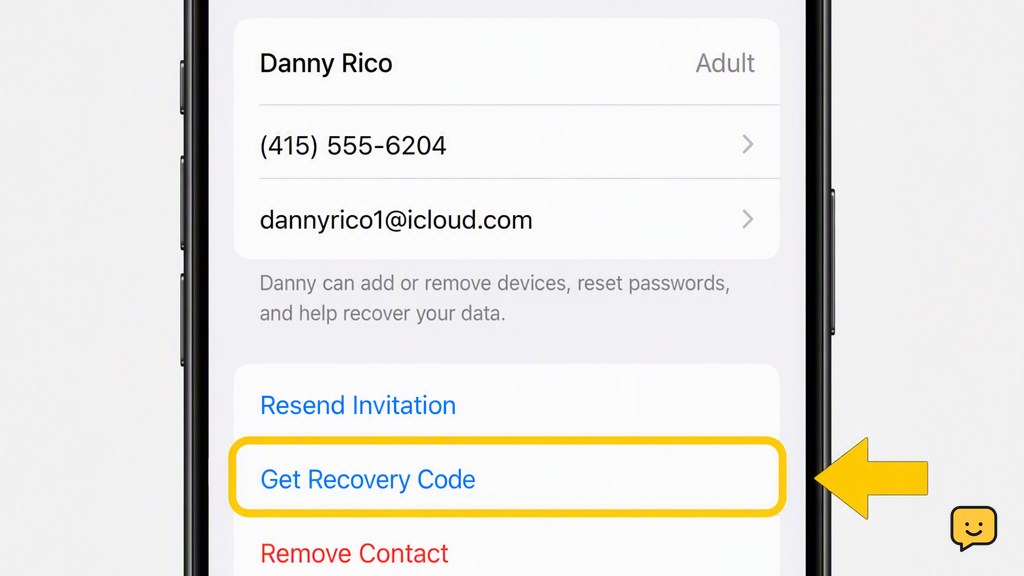
- They should open Recovery Contacts and select your name under the account-recovery section.
- They can then choose the option to obtain a recovery code and give that code directly to you.
- Enter the code where Apple’s recovery screen requests it, then follow the instructions to reset your password.
If your name does not appear in the person’s Recovery Contacts settings, they were not configured as your recovery contact for this account. Do not keep guessing codes; proceed to Apple’s account recovery process.
Start Apple account recovery
Account recovery is Apple’s identity-verification process for situations where the normal reset options are unavailable. It can take several days or longer.
- Open a browser and type iforgot.apple.com directly into the address bar.
- Enter the email address or phone number used to sign in to your Apple Account.
- Follow the identity-verification prompts. If requested, enter the trusted phone number associated with the account, even though you cannot currently receive messages or calls there.
- When Apple offers verification through an unavailable device or number, choose the on-screen option indicating that you cannot use that method.
- Provide a phone number that you can access now if Apple requests one for recovery updates.
- Review the information carefully and submit the recovery request.
Button wording may differ by device, browser, and software version. Follow the route that says you cannot access the listed device or phone number; do not create a different Apple Account as a substitute for recovering the existing one.
Confirm that recovery has started
After submission, Apple displays or sends information about the request. Apple may send a confirmation within 72 hours that includes an estimated date or time for regaining access.
- Save the confirmation and note which reachable number will receive updates.
- Return to iforgot.apple.com if you need to check the request’s status.
- Keep the reachable phone number active and available.
- Wait for Apple’s instructions rather than submitting multiple requests.
Verification checkpoint: Recovery is underway only when Apple confirms the request or shows its status through the official recovery site. A message from an unrelated address or a request for payment is not proof of recovery.
Avoid delaying or canceling the request
Apple uses the waiting period to reduce the risk of an unauthorized takeover. Apple Support cannot shorten this period.
- Avoid signing in to the account on additional devices while recovery is pending.
- Turn off other devices that remain signed in if Apple’s recovery instructions direct you to stop using them.
- If you started recovery from Settings, System Settings, or the Apple Support app, you may continue using that specific device unless Apple tells you otherwise.
- Do not repeatedly restart the password-reset process.
Using the account during the waiting period can cancel the request. If that happens, return to iforgot.apple.com, check the status, and restart recovery only if Apple shows that no active request remains.
Finish recovery and secure the account
When the waiting period ends, Apple sends instructions to the reachable phone number or contact method provided during recovery.
- Open the official notification and follow its link or return to iforgot.apple.com yourself.
- Create a new, unique password that you have not used on another account.
- Sign in and open Sign-In & Security.
- Add a trusted phone number you currently control.
- Remove the old number only after the replacement has been added and verified.
- Review trusted devices and remove devices you no longer own or recognize.
- Add a recovery contact if you do not already have one.
Test the new credentials on one device before changing settings across every device. If unfamiliar devices or recovery details appear, secure the account immediately and follow Apple’s security instructions.
Handle recovery failures and suspicious messages
If recovery does not proceed, match the problem to the appropriate next step.
- You do not recognize the trusted number: Recheck the Apple Account email or phone number you entered. You may be attempting recovery for a different account.
- You cannot remember the full trusted number: Check old phone records, carrier records, or trusted devices that still show the account’s security settings. Do not guess numbers belonging to other people.
- No confirmation arrives: Check the status directly at iforgot.apple.com and confirm that the reachable contact number was entered correctly.
- The request disappeared: Account activity may have canceled it. Start again only after confirming that no request remains active.
- Someone offers to bypass the wait: Stop contact. No third party can legitimately override Apple’s verification process.
Never disclose your password, device passcode, or verification code in response to an unsolicited call, text, or email. A legitimate recovery contact should give a recovery code to you; they should not ask you to surrender your credentials.
Frequently asked questions
Can I recover my Apple Account if I no longer have the trusted phone number?
Yes. Use a trusted Apple device that is already signed in, ask a previously configured recovery contact for a code, or start account recovery at iforgot.apple.com. Apple may still ask you to identify the old trusted number even though you cannot receive calls or messages through it.
How long does Apple account recovery take?
Account recovery may take several days or longer, depending on the information Apple can verify. Apple may send confirmation within 72 hours with an estimated recovery date or time. Apple Support cannot shorten the waiting period, and account activity during the wait may interrupt the request.
Can Apple Support remove my old trusted phone number?
Not without completing the required account-verification process. Apple Support cannot bypass two-factor authentication or shorten an account-recovery wait. Regain access through a trusted device, recovery contact, or iforgot.apple.com, then add and verify a current number before removing the obsolete one.
Can a recovery contact see my Apple Account data?
No. A recovery contact cannot access your photos, messages, backups, password, or other account data. Their role is limited to obtaining a recovery code for you through their Apple device. Recovery contacts must have been configured before you lost access.
Will signing in cancel Apple account recovery?
It can. Using the Apple Account on other signed-in devices during the waiting period may cancel the request. Follow Apple’s displayed instructions and avoid unnecessary sign-in attempts. If recovery was started from a particular device, Apple may allow you to continue using that device while you wait.
Browse more Access & Recovery guides for help with this topic.


