Start by restarting both the LG TV and router, then forget and reconnect the TV to your home network. If dropouts continue, test the TV closer to the router, try the other available Wi-Fi band, and install any TV software update. If other devices also disconnect, focus on the router or internet service instead.
Confirm whether the TV or home network is dropping
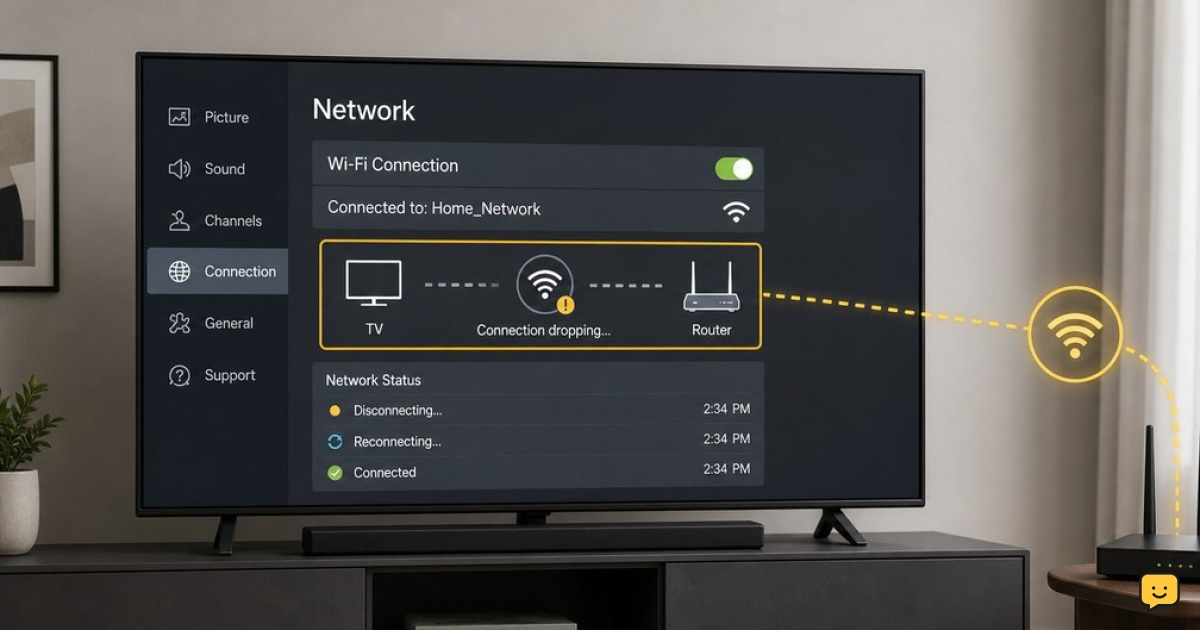
LG identifies intermittent loss of connection during streaming and long connection delays as Wi-Fi connection problems. Before changing settings, check whether the problem is limited to the TV.
- When the TV disconnects, check a phone or computer connected to the same home Wi-Fi in the same room.
- If those devices are also offline or slow, the router, internet service, or local Wi-Fi coverage is the likely starting point.
- If other devices stay connected, open the TV’s network status screen. On many LG TVs, go to Settings, then All Settings, and look for Network or Wi-Fi Connection. Menu names vary by webOS version.
Verify: The TV should show a connection to the wireless router and internet. If it disconnects only while streaming, continue with the TV and signal checks below.
Restart the TV and router in the right order
A full restart clears a temporary connection state. Restarting both devices is also the first practical step recommended by the troubleshooting sources below.
- Turn the LG TV off and unplug it from wall power.
- Unplug the router. If your internet service uses a separate modem, unplug that too.
- Wait about 30 seconds.
- Plug in the modem first, if present, and wait until it has finished reconnecting.
- Plug in the router and wait until its normal connection lights return.
- Plug the TV back in, turn it on, and reconnect to Wi-Fi if needed.
Verify: Play a video for 10 to 15 minutes. If the connection holds, no further changes are needed. If it drops again, leave the router powered on and reconnect the TV’s saved network.
Forget the saved Wi-Fi network and connect again
A saved network profile can retain an outdated connection state after a router restart, password change, or network adjustment. Remove only the affected home network from the TV, then add it again.
- Open the TV’s Network or Wi-Fi Connection settings.
- Select your current home network and choose the available option to disconnect, forget, or remove it.
- Wait for the TV to scan for networks again.
- Select your home Wi-Fi name and enter the current password carefully.
- Confirm that the TV reports an internet connection, then test a streaming app.
Failure path: If your home network does not appear in the list, move to the signal and band checks. If it appears but rejects the password, confirm the password with the network owner rather than repeatedly guessing it.
Improve the signal and test the other Wi-Fi band
Weak or obstructed wireless coverage can cause a TV to connect briefly and then drop during streaming. Start with placement before making router changes.
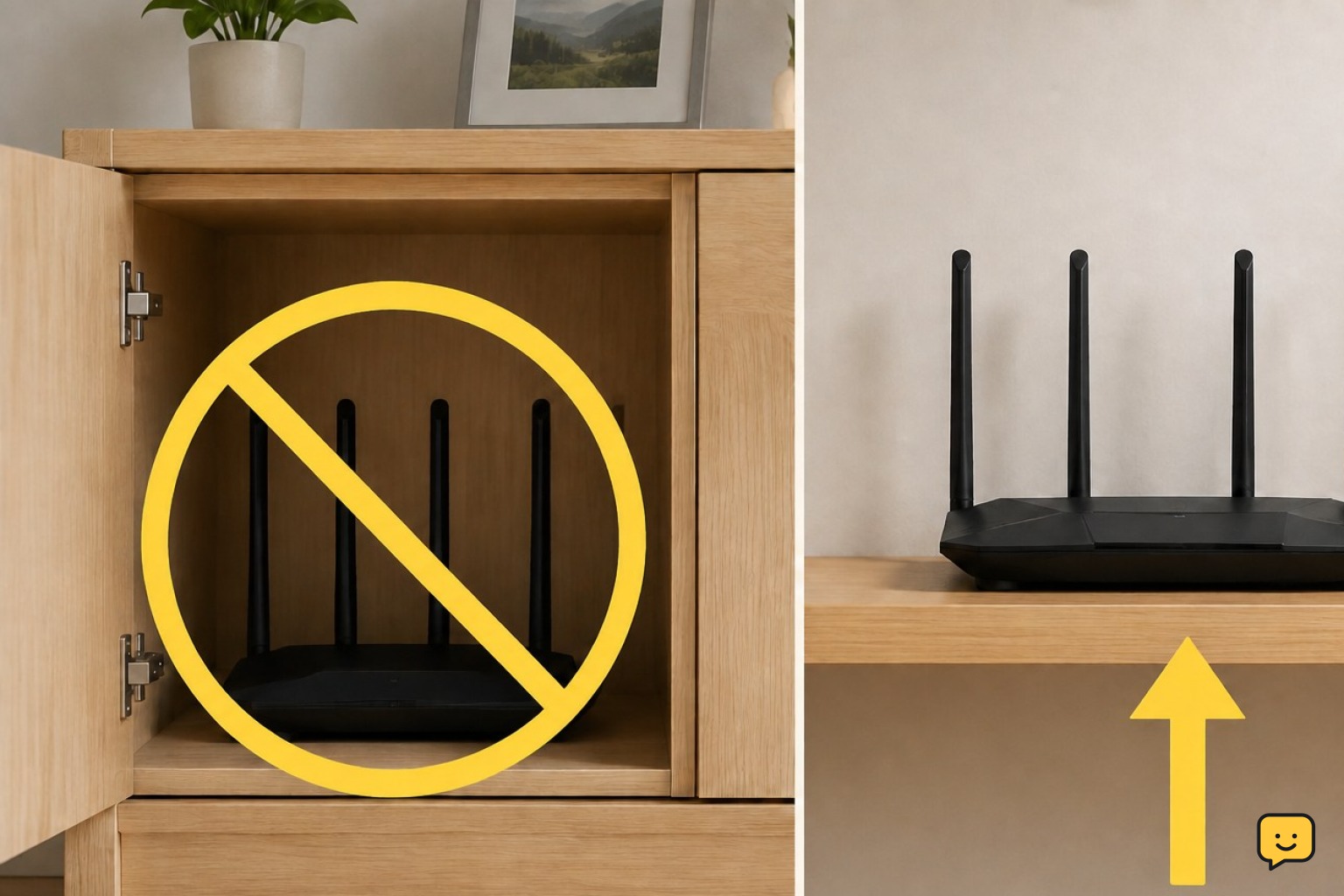
- Make sure the router is upright, uncovered, and not enclosed in a cabinet or behind the TV.
- Keep the router away from large metal objects and avoid placing it directly on the floor where possible.
- Temporarily move the TV closer to the router, or temporarily move the router to a clearer, higher location. Test streaming again.
- If your router provides separate network names for 2.4 GHz and 5 GHz, connect the TV to the other band and retest.
In general, 2.4 GHz can be more useful when the TV is farther away or separated by walls, while 5 GHz can work well at shorter range. Do not disable router security or change advanced router options merely to test the TV.
Verify: If the TV remains stable closer to the router or on the other band, the recurring dropout is likely related to Wi-Fi coverage or band conditions. Keep the arrangement that remains stable, or consider a properly placed mesh point or extender if the TV cannot be moved.
Update the TV software, then retest
Install an available LG TV software update after the connection is stable enough to remain online. Updates can include fixes for TV functions and connectivity behavior.
- Open Settings and go to All Settings.
- Look for Support, then Software Update. The wording can differ by model.
- Select the option to check for updates and install an available update.
- Keep the TV powered on until the update finishes and the TV restarts if requested.
- Reconnect to Wi-Fi and repeat the same streaming test that previously caused a dropout.
Do not unplug the TV during an update. If the TV cannot stay online long enough to update, use LG’s support resources for your model before attempting a factory reset.
Use a reset only after the targeted checks fail
If restarting, reconnecting, improving signal conditions, changing bands, and updating software do not help, use the least disruptive reset offered in the TV’s network settings first. A network reset removes saved network details and requires you to reconnect afterward.
A full TV reset is a last resort because it can remove apps, preferences, and signed-in services. Check the on-screen reset description before confirming it, and be prepared to set the TV up again.
When to stop: If the TV cannot find any Wi-Fi networks, loses Wi-Fi even beside a known-working router, or is the only device with repeated failures after the steps above, contact LG Support with the TV model number and a description of when the disconnect occurs.
Frequently asked questions
Why does my LG TV disconnect from Wi-Fi while streaming?
It can disconnect because of a temporary TV or router connection state, weak Wi-Fi coverage near the TV, or an unsuitable band for the distance and walls involved. Restart the TV and router first, then reconnect the saved network and test the TV closer to the router.
Should I use 2.4 GHz or 5 GHz for an LG TV?
Try the band that stays stable in your room. A 2.4 GHz network may work better when the TV is farther from the router or separated by walls, while 5 GHz can work well at shorter distances. Test one band at a time with the same streaming video.
Will forgetting Wi-Fi on an LG TV delete my apps?
No. Forgetting or removing a saved Wi-Fi network normally removes the network connection details, not installed apps or picture settings. You will need to select your network again and enter its current password.
What if every device keeps disconnecting from Wi-Fi?
Treat it as a home-network or internet-service issue rather than an LG TV-only problem. Restart the modem and router, check for a service outage, and contact the internet provider if the connection does not stabilize. Avoid factory-resetting the TV until other devices stay connected normally.
When should I factory-reset an LG TV for Wi-Fi problems?
Use a full factory reset only after restarting the TV and router, reconnecting Wi-Fi, testing signal and bands, and updating software have failed. A factory reset can remove apps, preferences, and signed-in services, so try a network-only reset first if the TV offers one.
Browse more Home Electronics guides for help with this topic.