If your Samsung TV has sound but no picture, first open the TV menu and select the correct source. Then power-cycle the TV and connected devices, reconnect each HDMI cable, and test another source. If menus remain invisible, perform a flashlight test. A faint image usually points to a backlight problem that requires professional repair.
Check whether the TV menu appears
This first check separates an external source problem from a problem inside the TV.
- Turn on the TV and confirm that you can hear normal program audio.
- Press Home, Menu, or Settings on the Samsung remote.
- Watch closely for the Samsung menu, input bar, volume indicator, or any other on-screen graphic.
If the menu appears: The screen can produce an image. Continue with the source, cable, and picture-setting checks below.
If the menu does not appear: The fault is more likely on the TV side. Still complete the power cycle, then move to the flashlight test.
Select the correct source
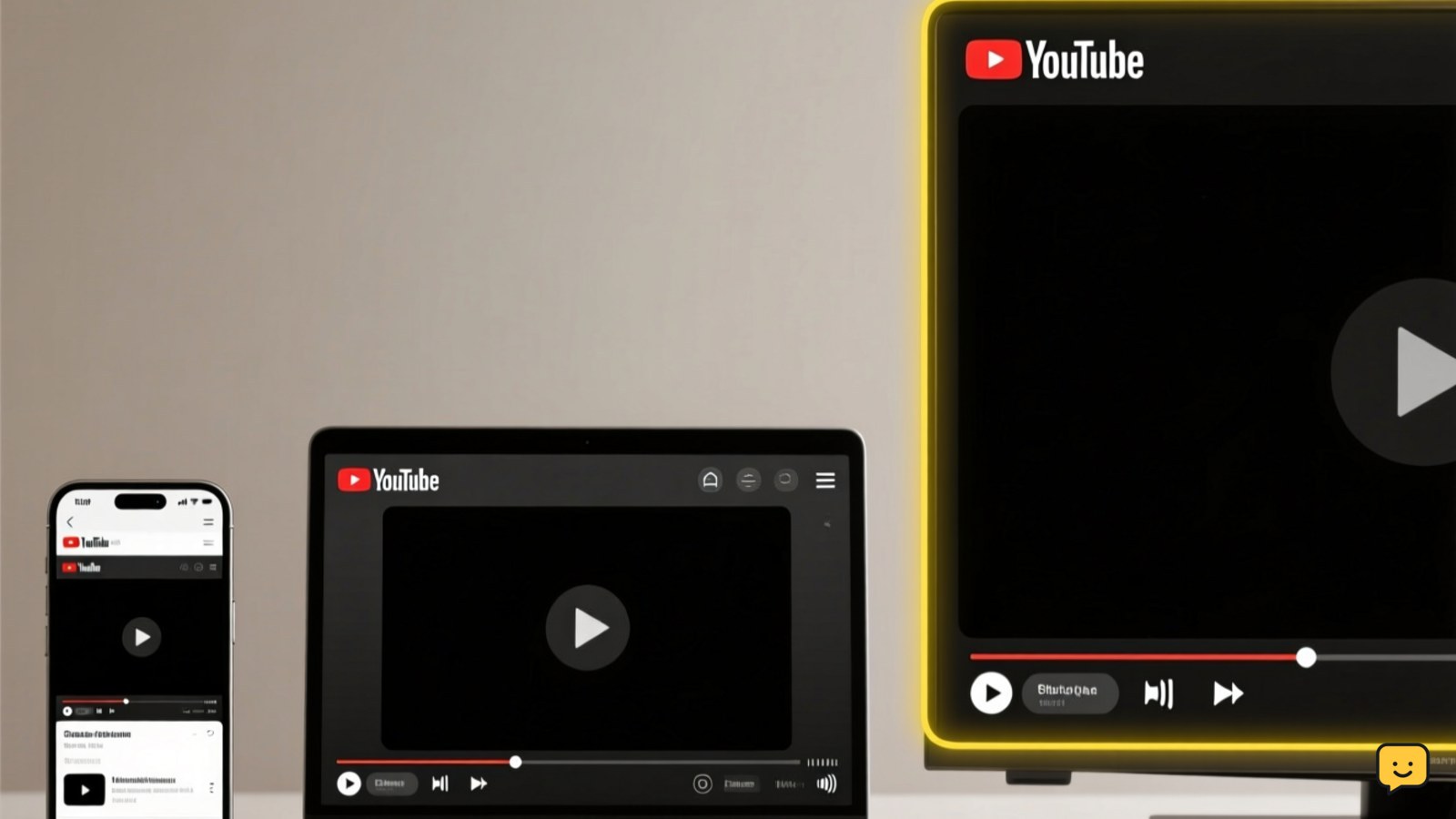
A TV can play audio while displaying a black screen if the selected input is wrong or the connected device is not sending video.
- Press Source or open Home and select Connected Devices or Source. Menu names vary by model.
- Select the HDMI port used by your cable box, streaming player, console, or other device.
- Wait several seconds after changing inputs.
- Try the TV’s built-in menu or an available built-in app to compare it with the external source.
If a built-in screen appears but one HDMI source remains black, focus on that device, its cable, and its HDMI port rather than the TV panel.
Power-cycle the TV and connected devices
A full restart can clear a temporary communication or startup failure.
- Turn off the TV and every connected source device.
- Unplug their power cords.
- Leave everything unplugged for about five minutes.
- Reconnect and turn on the TV first.
- Turn on one source device and select its input.
Verify the result: Look for the Samsung startup image, the TV menu, or video from the selected device. If the screen is still black, continue rather than repeatedly restarting it.
Reconnect the HDMI and video cables
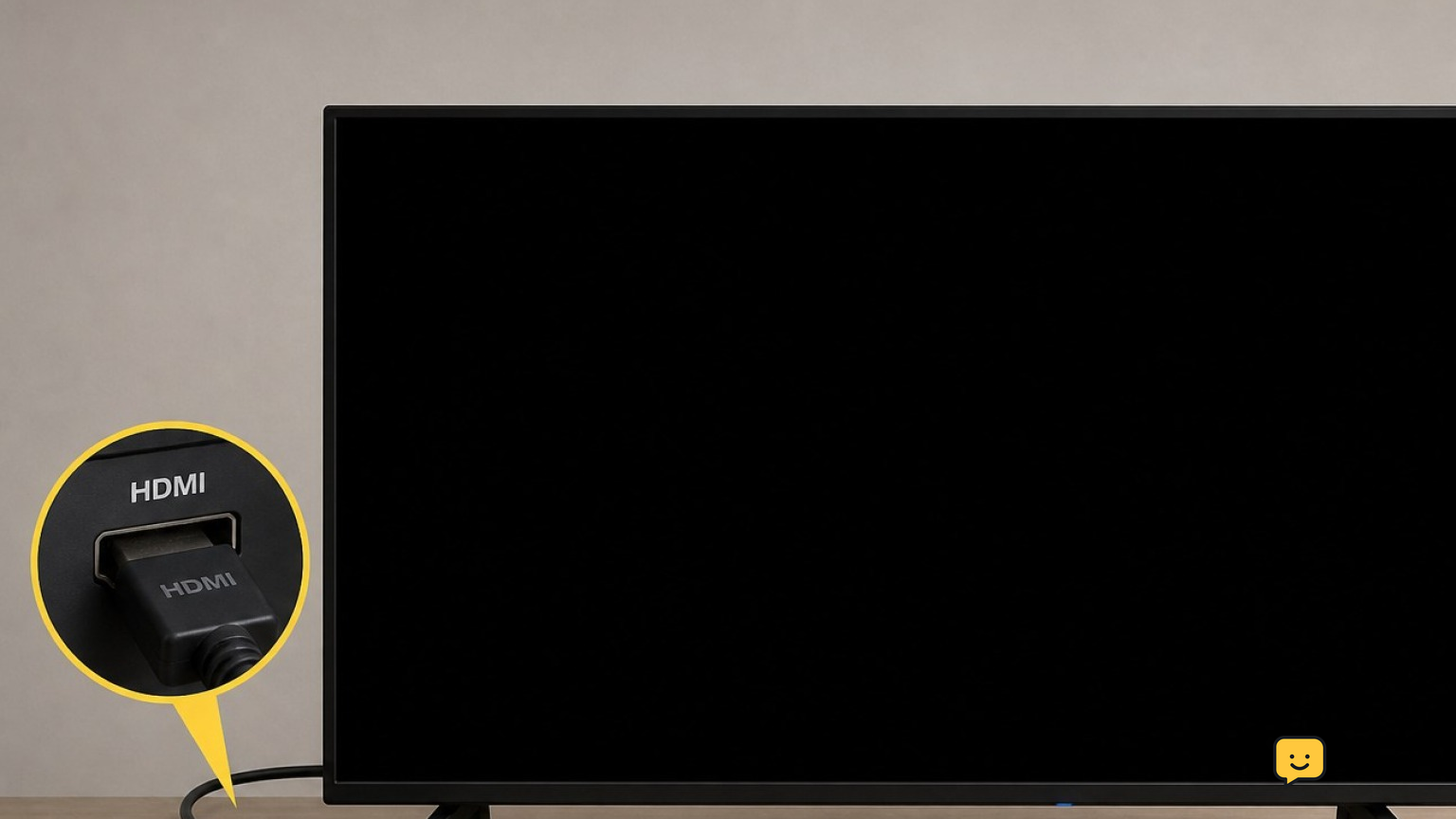
Samsung recommends checking connections one cable at a time and reconnecting both ends.
- Turn off the TV and source device.
- Disconnect the HDMI cable from both devices.
- Inspect the plugs and ports for bent contacts, debris, looseness, or visible damage.
- Reconnect both ends firmly without forcing them.
- If the TV uses a One Connect Box, check the relevant connections at the box as well.
- Turn the equipment back on and select the matching input.
Do not continue using a damaged cable or port. Replace the cable or arrange service for a damaged connector.
Test another cable, port, or source
Change only one item at a time so you can identify the failed part.
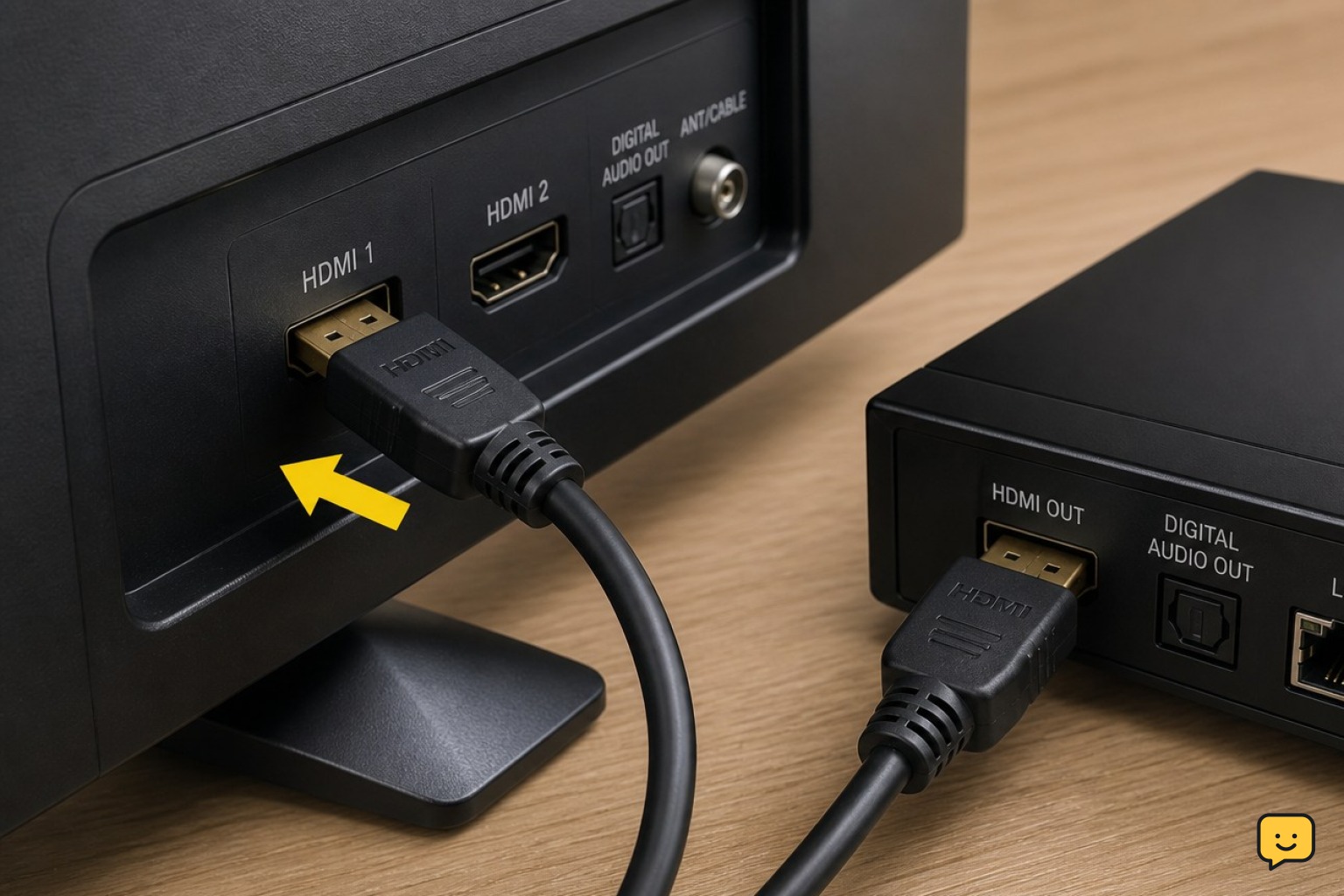
- Try a known-working HDMI cable.
- Move the source device to another HDMI port on the TV.
- Test a different source device on the same TV.
- If possible, test the original source device on another display.
How to read the results: If another device works, the original source or cable is responsible. If one HDMI port fails while another works, avoid the failing port and have it inspected. If every external source is black but the TV menu appears, review the picture settings next.
Check the picture settings
Only use this step if you can see the TV menu. If the menus are completely invisible, skip to the flashlight test.
- Open Settings and select Picture.
- Select a normal picture mode such as Standard.
- Check that the brightness-related controls have not been reduced to an unusually low level.
- If available, use Reset Picture to return picture adjustments to their defaults.
Exact menu paths vary by Samsung TV model and software version. If changing the picture mode restores normal brightness, verify the result on both a built-in screen and an HDMI source.
Perform the flashlight test
This check can indicate whether the LCD is forming an image while its backlight is not illuminating it.
- Turn on the TV and play content that produces sound.
- Darken the room.
- Hold a flashlight close to the screen and aim it across the surface at an angle.
- Move the light slowly while looking for faint menus, shapes, or moving video.
If you see a faint image: The TV is producing picture information, but the backlight is likely not lighting the screen. Stop here and arrange professional diagnosis.
If you see no image: The test does not identify the failed component. Confirm that you tested the TV menu and more than one source, then contact Samsung support or a qualified television technician.
Decide whether the TV needs service
Service is the appropriate next step when the basic checks cannot produce the TV’s own menu or a visible picture.
- Record the full model code and serial number from the label on the TV.
- Write down whether the menu appeared, which sources and cables you tested, and the flashlight-test result.
- Check the TV’s warranty or service coverage.
- Contact Samsung support or a qualified repair provider with those results.
Do not assume that replacing the backlights will fix every black-screen failure. A black screen can have more than one hardware cause, and identifying the failed internal part requires proper testing.
Frequently asked questions
Why does my Samsung TV have sound but a black screen?
The TV may be on the wrong source, receiving audio without video from a connected device, using a faulty HDMI cable, or experiencing an internal display or backlight failure. If the Samsung menu appears, start with the source and cables. If no menu appears, power-cycle the TV and perform the flashlight test.
How do I know if my Samsung TV backlight is broken?
A faint moving image visible only when you shine a flashlight across the powered-on screen strongly suggests that the display is forming an image but is not being illuminated normally. This points toward a backlight-related fault, but a technician should test the TV before any parts are replaced.
Can an HDMI cable cause sound without a picture?
Yes, a cable, port, or source-device problem can interrupt video even when audio is still present. Reconnect both cable ends, try a known-working HDMI cable, switch to another TV port, and test another source. Change one item at a time so the result identifies the likely cause.
Should I factory-reset a Samsung TV with a black screen?
No, not as the first step. A factory reset is difficult to perform safely when menus are invisible and will erase personalized settings. First test the TV menu, correct the source, restart the equipment, reconnect the cables, and perform the flashlight test. Use a picture reset only when the menu remains visible.
Is a Samsung TV worth repairing when it has sound but no picture?
It depends on the failed part, the TV’s age, warranty status, screen size, and the repair estimate. Request a diagnosis before authorizing parts. If the panel itself is damaged, replacement may be uneconomical; a technician can compare the repair cost with the cost of a suitable replacement TV.
Browse more Home Electronics guides for help with this topic.