
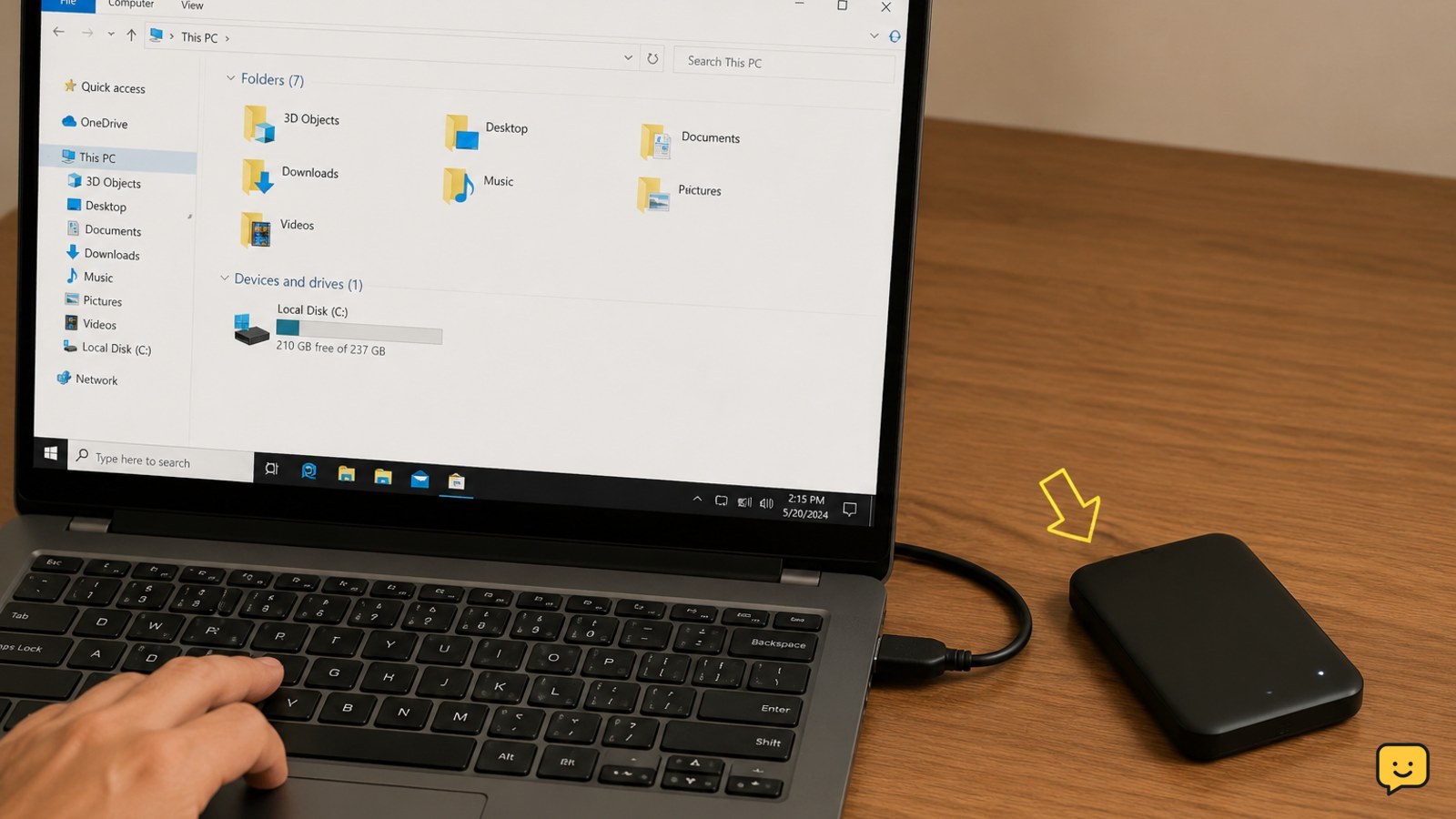
Check the external drive’s cable, power adapter, and USB port first, then open Disk Management to see whether Windows detects it. A missing drive letter can usually be fixed without touching the files. Do not initialize, format, delete partitions, or run repair commands if the drive contains important data and appears as RAW, unallocated, clicking, or repeatedly disconnecting.
1. Check the cable, power, and USB port
Start with the physical connection because a loose plug, damaged cable, insufficient power, or faulty USB port can prevent the drive from appearing anywhere in Windows.
- Disconnect the drive from the computer.
- Inspect both ends of the USB cable for bent connectors, fraying, or looseness.
- Reconnect it directly to a different USB port on the computer. Avoid a hub or dock during this test.
- If the drive has a power brick, verify that its light is on and that the adapter is firmly connected.
- Listen and look for normal activity: the drive should spin or show an activity light, depending on its design.
Wait several seconds, then open File Explorer and select This PC. If the drive appears, open it and copy important files to another location before continuing.
2. Test the drive with a different connection
If the drive is still absent, separate a computer-side problem from a drive-side problem. Try another compatible USB cable if the cable is detachable, then test another USB port. A port on the opposite side of a laptop can provide a useful comparison.
Next, connect the drive to another Windows computer if one is available. Do not repeatedly unplug a drive while its activity light is blinking; use the taskbar’s Safely Remove Hardware option when Windows recognizes it.
If the drive works on another computer, copy the data first. The original computer may have a USB, driver, or power-management problem. If it fails everywhere and shows the warning signs listed above, stop testing rather than trying to force it online.
3. Check whether Windows detects the drive in Disk Management
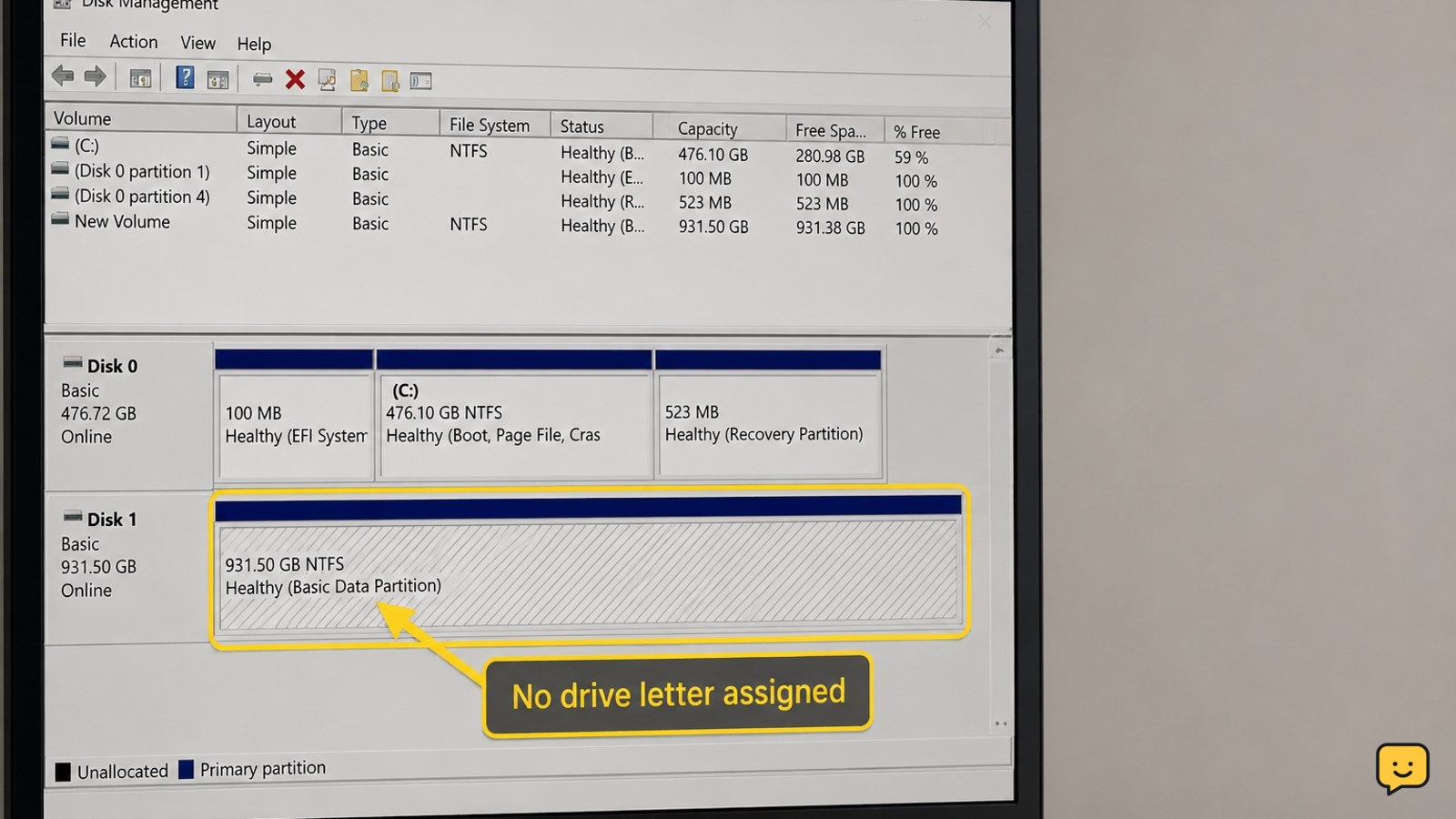
File Explorer shows usable volumes, not every physical disk. Disk Management can reveal whether Windows sees the external drive but has not assigned it a letter.
- Right-click the Start button and select Disk Management.
- Wait for the lower disk list to finish loading.
- Identify the external drive by its capacity and connection time. Do not rely on the disk number alone.
Compare the status with these possibilities:
- Healthy partition with no drive letter: the files may be intact, but File Explorer has no letter to display.
- Offline: Windows has detected the disk but it is not currently available.
- RAW: Windows cannot read the file system normally. Do not format it if you need the files.
- Unallocated: Windows sees space without a recognized volume. Do not create a new volume if the disk previously contained data.
- Not listed at all: return to the cable, power, port, and second-computer tests. A driver or hardware fault is more likely than a simple drive-letter issue.
4. Assign a drive letter only when the volume is healthy
Assigning a drive letter is the lowest-risk Disk Management fix when the external drive shows a normal, recognized partition and the volume is not RAW or unallocated.
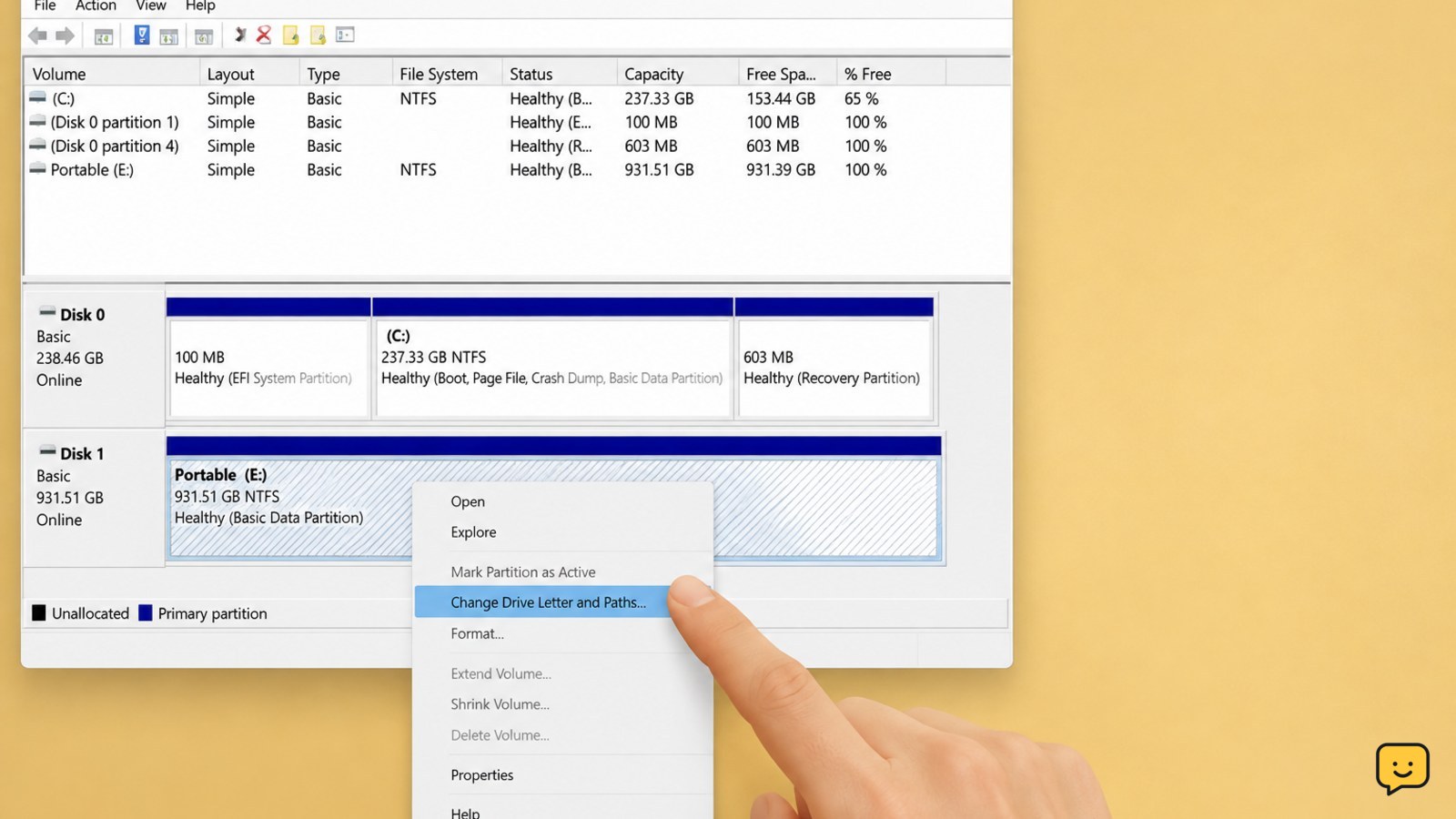
- In Disk Management, right-click the healthy partition for the external drive.
- Select Change Drive Letter and Paths.
- Select Add if no letter is present.
- Choose an unused letter and select OK.
Close Disk Management and reopen File Explorer. Select This PC and check for the new drive letter. If the drive appears, copy important files before changing anything else.
If Change Drive Letter and Paths is unavailable, or Windows asks to format the volume, cancel the prompt. That result indicates this is not a simple missing-letter problem.
5. Handle RAW, unallocated, or repeatedly disconnected drives safely
A RAW or unallocated status can indicate file-system damage, a partition problem, or a failing drive. Formatting or creating a new volume may make the previous file structure harder to recover, so do not choose those options merely to make the disk appear.
If the files are backed up, you can replace the drive and format it using Windows’ normal storage tools. If the files are not backed up, leave the drive unchanged and use a reputable data-recovery professional or recovery service. Ask for an evaluation before authorizing work.
For a healthy, readable drive that appears briefly and then disappears, copy data immediately, replace the cable, and test a different port. If it continues disconnecting, stop. Repeated connection attempts can worsen a failing device.
6. Refresh Windows only after the physical checks
If the drive works on another computer but not this Windows 11 PC, restart the computer and test the direct USB connection again. You can also open Device Manager, expand Disk drives and Universal Serial Bus controllers, and check for a warning icon.
Use only the manufacturer’s or Windows Update driver source. Do not remove an unknown storage device or change advanced controller settings while the drive contains data unless you have a backup and understand the effect.
Verify the result by checking both Disk Management and File Explorer. The fix is complete only when the correct capacity is shown, the expected files open, and the drive can be safely ejected.
Frequently asked questions
Why is my external hard drive not showing in File Explorer but visible in Disk Management?
The most common reason is that the healthy volume has no drive letter. In Disk Management, right-click the recognized partition, choose Change Drive Letter and Paths, select Add, and choose an unused letter. Do not use this step if the volume is RAW, unallocated, unknown, or asking to be formatted.
Should I initialize an external hard drive that Windows 11 does not recognize?
No, not if the drive contains files you need. Initializing changes disk information and can complicate recovery. First test the cable, power, USB port, and another computer. If the drive remains unknown or unallocated, leave it unchanged and seek data-recovery advice.
What does RAW mean on an external hard drive?
RAW means Windows cannot currently read the volume’s file system in the normal way. It does not prove that every file is gone, but formatting can overwrite information needed for recovery. Cancel format prompts and avoid repair commands until important data is backed up or recovery has been assessed.
How can I tell whether the USB cable or the external drive is faulty?
Test the drive with another compatible cable, a different direct USB port, and another computer. If it works elsewhere, the original port, cable, or computer is more likely at fault. If it fails everywhere, makes unusual sounds, gets hot, or disconnects repeatedly, stop testing and consider professional recovery.
Browse more Computers & Internet guides for help with this topic.


